
On this page
What the AI file renamer changes
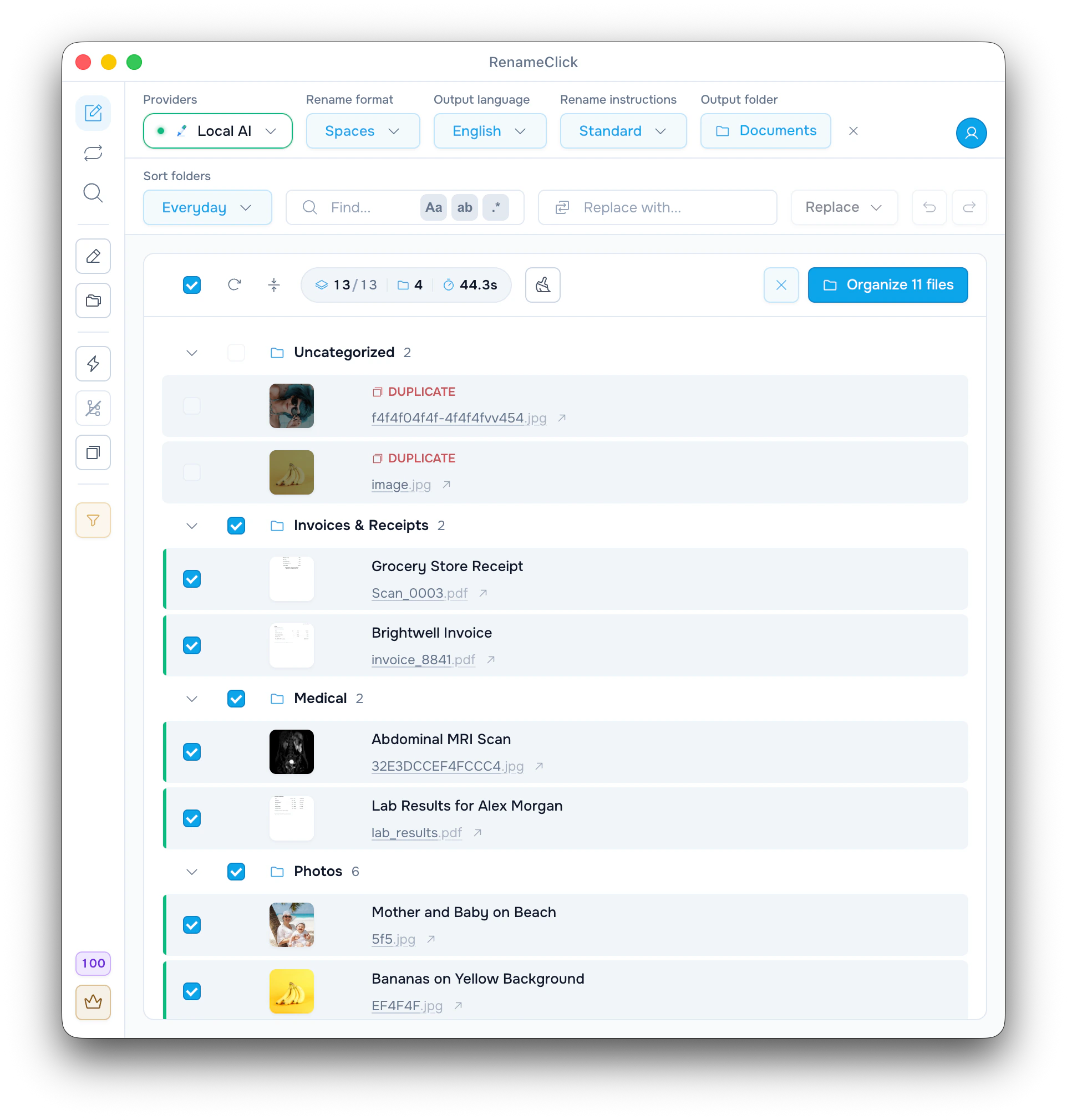
RenameClick reads each file and suggests a name from its content: a document's text, a scan's first page, what a photo or screenshot shows, or the speech in a recording. Nothing changes on disk until you apply.
| Original | Suggested name | Based on |
|---|---|---|
| Scan_0003.pdf | Grocery Store Receipt.pdf | The receipt on the page |
| invoice_8841.pdf | Brightwell Invoice.pdf | The invoice text |
| 5f5.jpg | Mother and Baby on Beach.jpg | What the photo shows |
| Screenshot 2026-09-10 at 14.02.11.png | Auto Flow Rule Settings Dialog.png | What the screenshot shows |
| recording_042.m4a | Project Kickoff Summary.m4a | Speech, transcribed on your computer |
The first three rows come from the batch in the screenshot above (Standard instructions, Spaces format). The last two are illustrative. The extension never changes.
Choose where files are analyzed
Open the Providers menu in the header. Local AI is the default: install RenameClick Local AI when the app asks, and files are analyzed on your computer, offline after the download.
Direct Mac and Windows builds can also use cloud providers such as OpenAI or Google with your own API key, or an LM Studio or Ollama server. A cloud provider receives the file content and bills you separately. The Mac App Store build has no cloud providers.
Setup for each one is in the provider reference.
Add files and run AI
- In the sidebar, keep Rename on. Turn Sort off to leave files in their folders.
- Drop files or a folder on the list, or click Browse Files. A folder adds only its own files; turn on Recursive to include subfolders.
- With Auto mode on, analysis starts at once. Otherwise click Run AI.
Images, PDF, Word, XLSX, PPTX, text files and MP3, WAV, FLAC, M4A and AAC recordings are supported. Recordings need Audio Transcription, installed once. Other files, such as MOV or ZIP, are skipped.
See the full format list.
Choose how the names look
Open the Rename format menu and pick a format. For the receipt above:
| Rename format | Name for Scan_0003.pdf |
|---|---|
| Spaces | Grocery Store Receipt.pdf |
| Slug Case | grocery-store-receipt.pdf |
| Camel Case | groceryStoreReceipt.pdf |
| [EXIF] When_Where | Grocery Store Receipt.pdf (it adds the date and place to photos only) |
Output language sets the language of the AI name, in any of 14 languages.
For your own pattern, choose New format… in the same menu and click Use on Date and place first. Edit as text shows it as:
$date{YYYY-MM-DD,taken}_$exif{location; else=""}_$1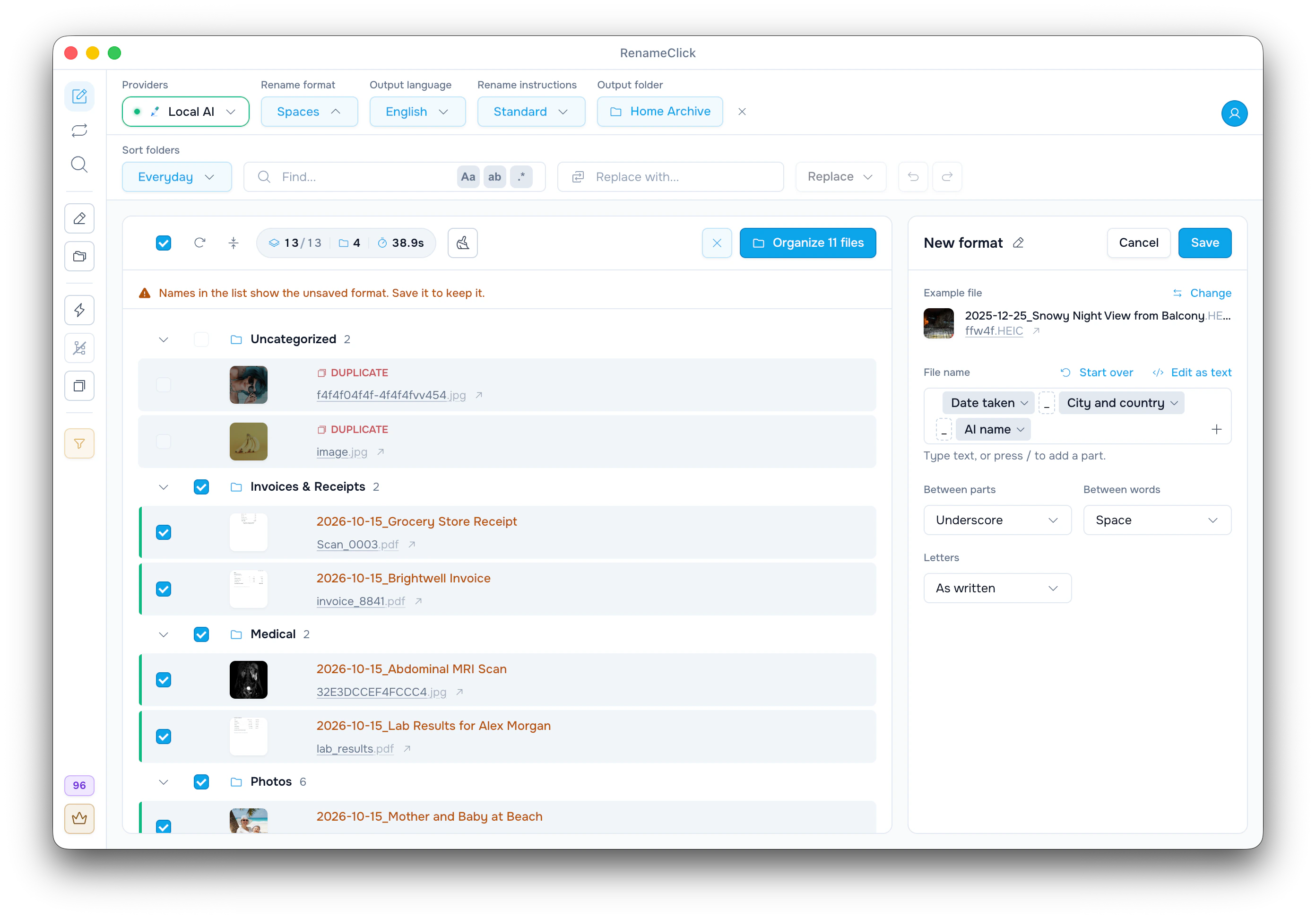
$1 is the AI name, and else="" leaves out a missing place. The photo ffw4f.HEIC has no place in its metadata, so it becomes 2025-12-25_Snowy Night View from Balcony.HEIC. Click Save to keep the format.
A format can also keep a camera number or invoice ID from the old name.
One trap: the list shows Scan_0003.pdf as 2026-10-15_Grocery Store Receipt. A PDF has no date taken, so the pattern used the day the file was created, not the date printed on the receipt. The next section fixes that.
Put the printed date and total in the name
For fields printed in a document, use Custom Instructions. In the Rename instructions menu, choose New instructions…, click Use on the Receipts and bills starter, then Save:
| Rename instructions | Name for Scan_0003.pdf |
|---|---|
| Standard, Spaces format | Grocery Store Receipt.pdf |
| Receipts and bills | 2026-04-12 GREENLEAF MARKET 12,40 EUR.pdf |
While your instructions are selected, Rename format and Output language are disabled: the instructions decide the whole name. Choose Standard to get them back.
Examples for contracts, payslips and bank statements: Write Custom Instructions for AI File Renaming.
Check and fix the suggestions
- Click a suggested name to edit it.
- Use Find & Replace for the same fix in many names: find Invoice, replace it with INV, then Replace All.
- Open What the AI saw on a row to see the text and image the name came from.
- Re-run a row to ask for a different name. Retry Errors runs failed files again.
- Uncheck a row to leave that file as it is.
A scanned PDF is read from its first page, so a date printed only on page 3 can't reach the name.
Apply the selected names
Click the button above the list: Rename Selected with Sort off, or Organize with the file count, such as Organize 11 files, with Sort on (Rename & Move for a Date and place folder set). Organize also moves each file into its folder.
Extensions stay as they were. If a name is taken, _1, _2 and so on is added.
With Trash duplicates on in the sidebar, identical copies show DUPLICATE, like the two at the top of the screenshot. When you apply, the oldest copy is renamed and the others go to the Trash.
Analysis is free. On Free, each changed file uses one apply credit, and 100 are included each month. A rename plus a move is one credit; duplicates moved to the Trash use none.
Undo a batch
Click Undo, the left arrow next to Replace, to bring back the old names and folders, and any duplicates sent to the Trash. Redo applies the batch again. The Rename screen keeps the last 10 actions and clears them when the app restarts.
For files that keep arriving, set up an Auto Flow rule with the same settings: How to Automatically Sort Files with Auto Flow.