
On this page
Start with the detail you search for
Choose the fields you actually use to find a file: a subject, client, document type, date, or original identifier. Put the most useful grouping field first. Avoid adding fields whose values you cannot reliably obtain.
A date-first name sorts chronologically in a filename list. A client-first name groups clients. Neither replaces a folder structure or a search tool; choose the order that suits the way you browse.
Decide what the date means
| Date | Source | Suitable use |
|---|---|---|
| File created | Filesystem metadata | When the file was created on this filesystem. |
| File modified | Filesystem metadata | When this copy was last changed. |
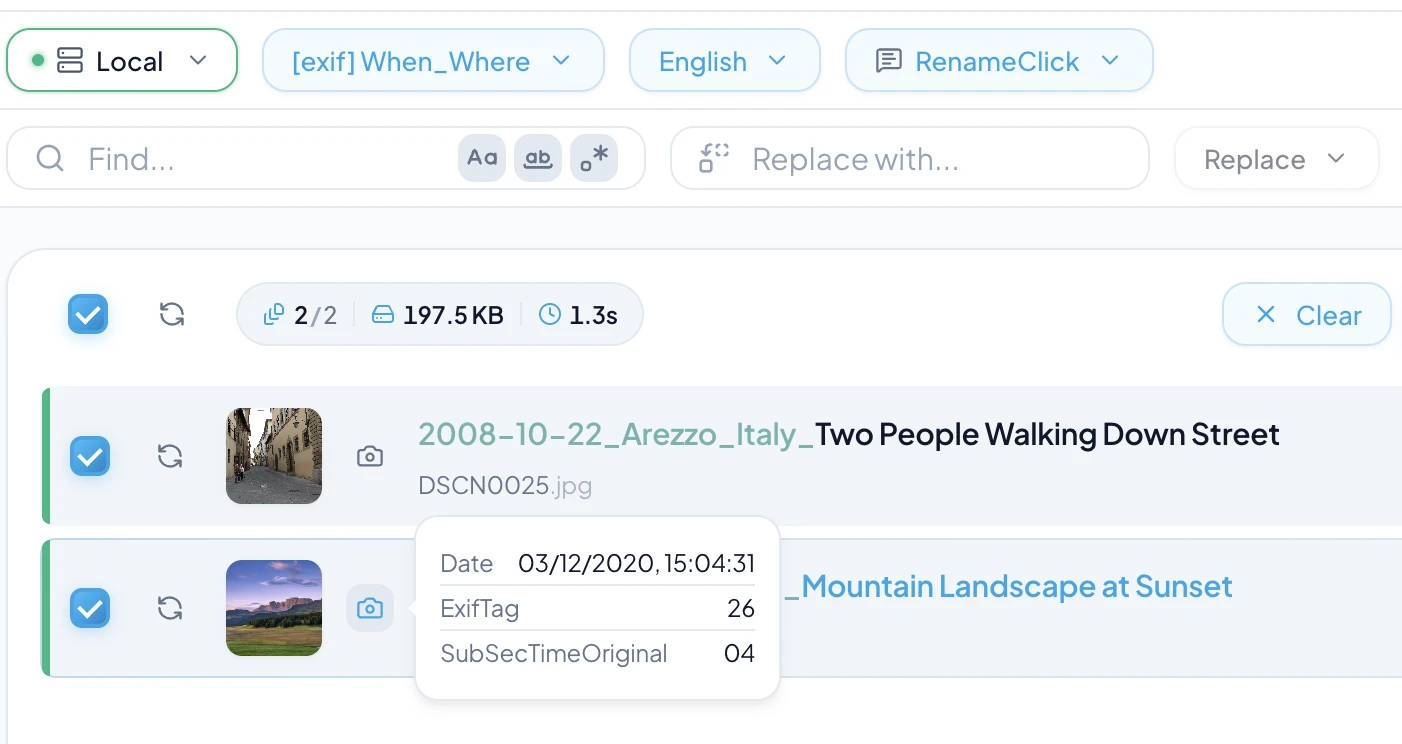
| Photo taken | EXIF, when available | When the camera recorded the photo. |
| Document date | Visible or extracted document content | The issue date requested in naming instructions. |
A downloaded invoice’s creation date may be its download date. Do not label that field Invoice Date. If your naming prompt asks for a document date, specify which one and what to return when it is absent.
An ISO-style YYYY-MM-DD date sorts in calendar order. A date alone does not distinguish several revisions made on the same day.
Choose separators and a version rule
Spaces are readable on a desktop. Hyphens can be convenient for files that will become URL paths. Use one convention within a collection so names are easier to scan.
Keep an explicit version identifier if versions matter. RenameClick cannot infer your approved version from a filename or guarantee that the latest modification is the correct final document.
Preserve a camera number or export ID when another system uses it. An automatically assigned counter is a new sequence, not the original identity of the file.
See preserving original identifiers for the full reference.
Templates and examples by file type
Use one template per file family and keep the field order fixed inside that family. Replace the placeholders with the fields you actually search for. The names below are illustrative; your files and rules will produce different words.
| File family | Template | Example |
|---|---|---|
| Invoices and receipts | YYYY-MM-DD_supplier_document-type_number | 2026-04-03_acme-supplies_invoice_1187.pdf |
| Contracts and proposals | YYYY-MM-DD_client_document-type_version | 2026-03-01_northwind_service-agreement_v2.pdf |
| Reports | YYYY-Qn_report_topic | 2026-Q1_report_sales-summary.docx |
| Photos | YYYY-MM-DD_place-or-event_subject | 2026-07-02_lake-tahoe_sunset-from-pier.jpg |
| Screenshots | YYYY-MM-DD_app_what-is-shown | 2026-02-10_billing_checkout-error-dialog.png |
| Scans | YYYY-MM-DD_sender_subject | 2026-05-19_city-council_parking-permit-letter.pdf |
| Meeting recordings | YYYY-MM-DD_meeting_topic | 2026-06-12_planning-call_q3-roadmap.m4a |
Keep the date in ISO order when chronological sorting matters, and put the field you search by first when it does not. A version marker belongs at the end, where it does not break the sort. Underscores separate fields; hyphens join the words inside one field.
$date{YYYY-MM-DD}_$slugcase{$1}
$exif{date}_$slugcase{$1}
$date{YYYY-MM-DD}_$oldName
The first pattern prefixes the generated description with the file creation date, the second with the EXIF capture date, and the third keeps the original name behind a date. Field-based names such as supplier, document type and number come from the document text, so write that structure in Custom Instructions; format patterns cannot read inside a document.
Common mistakes and how to avoid them
- final_v2_FINAL.docx: the version is ambiguous. Use one version marker at the end, or let the date carry the version.
- 03-04-2026_invoice.pdf: day and month are ambiguous outside your region. Use YYYY-MM-DD.
- Document1.pdf, IMG_4471.jpg, Scan_0021.pdf: the name says nothing outside its folder. Include the subject and one identifying field.
- Invoice (copy) (1).pdf: copies hide behind counters. Decide whether the duplicate is needed before renaming it.
- Mixed separators and cases across one archive: a convention only helps when every file of the same family follows it.
- Names longer than the file list can show: keep the searchable field near the start so it stays visible when the name is truncated.
On Windows, avoid the reserved characters < > : " / \ | ? * and reserved device names. Check any sync service or web server the files pass through separately; a local filename and a public URL do not share one set of rules.
Apply a format in RenameClick
With the built-in naming instructions selected, use Format to arrange the generated description and metadata. These are templates to enter, not results from a file test:
$date{YYYY-MM-DD}_$1
$oldName_$1
$slugcase{$1}
The first pattern uses the file creation date. The second retains the original name without its extension. Slug Case changes the description to lowercase words with hyphens; $lower{$1} changes case but keeps spaces.
For fields extracted from document content, select Custom Instructions instead and write the whole naming rule there. Format and Output Language are disabled in that mode.
See writing a field-based naming prompt for the full reference.
See the format syntax reference for the full reference.
Check the convention before applying it
Inspect the proposed names for missing fields, repeated separators, cut-off descriptions, and conflicting IDs. Use Find & Replace for consistent edits to suggestions, or retry after changing the settings.
Apply the selected files when the names are useful. Keep the convention documented for people who name related files manually.
Reuse the same settings
Save custom formats and instructions as presets. Export Settings transfers supported preferences and presets, including categorization settings; it does not transfer models, API secrets, licenses, or file-operation history.
On another computer, install the required capabilities and reconnect local paths. Import replaces the included settings, so review what you are importing.
See settings export and import for the full reference.