
Rename only
Change filenames in their current folders.
 RenameClick
AI file renaming for Mac and Windows
Choose your installation below. No card needed to start.RenameClick is a desktop application available for Mac and Windows. Please visit this page from your computer to download.
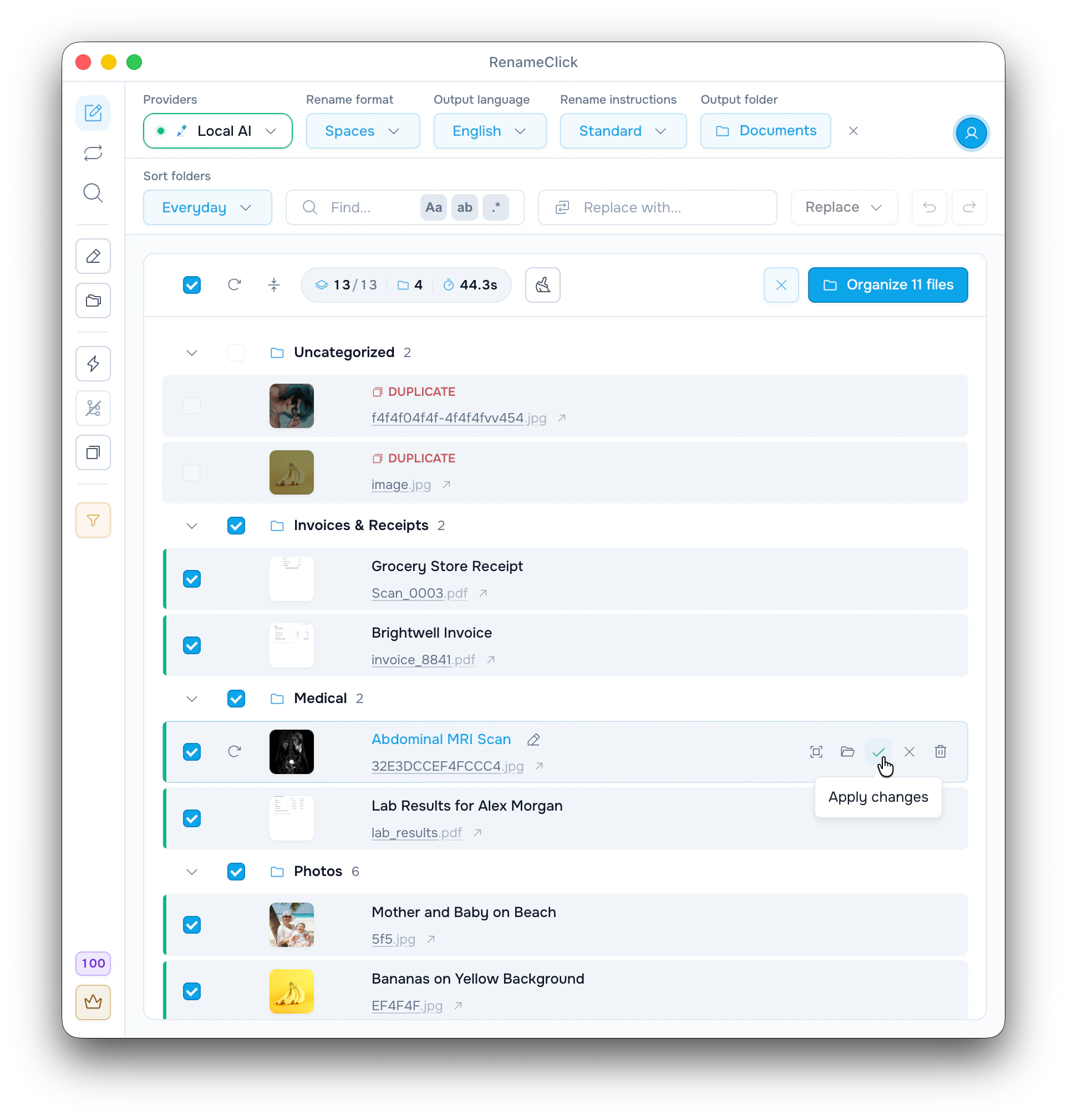
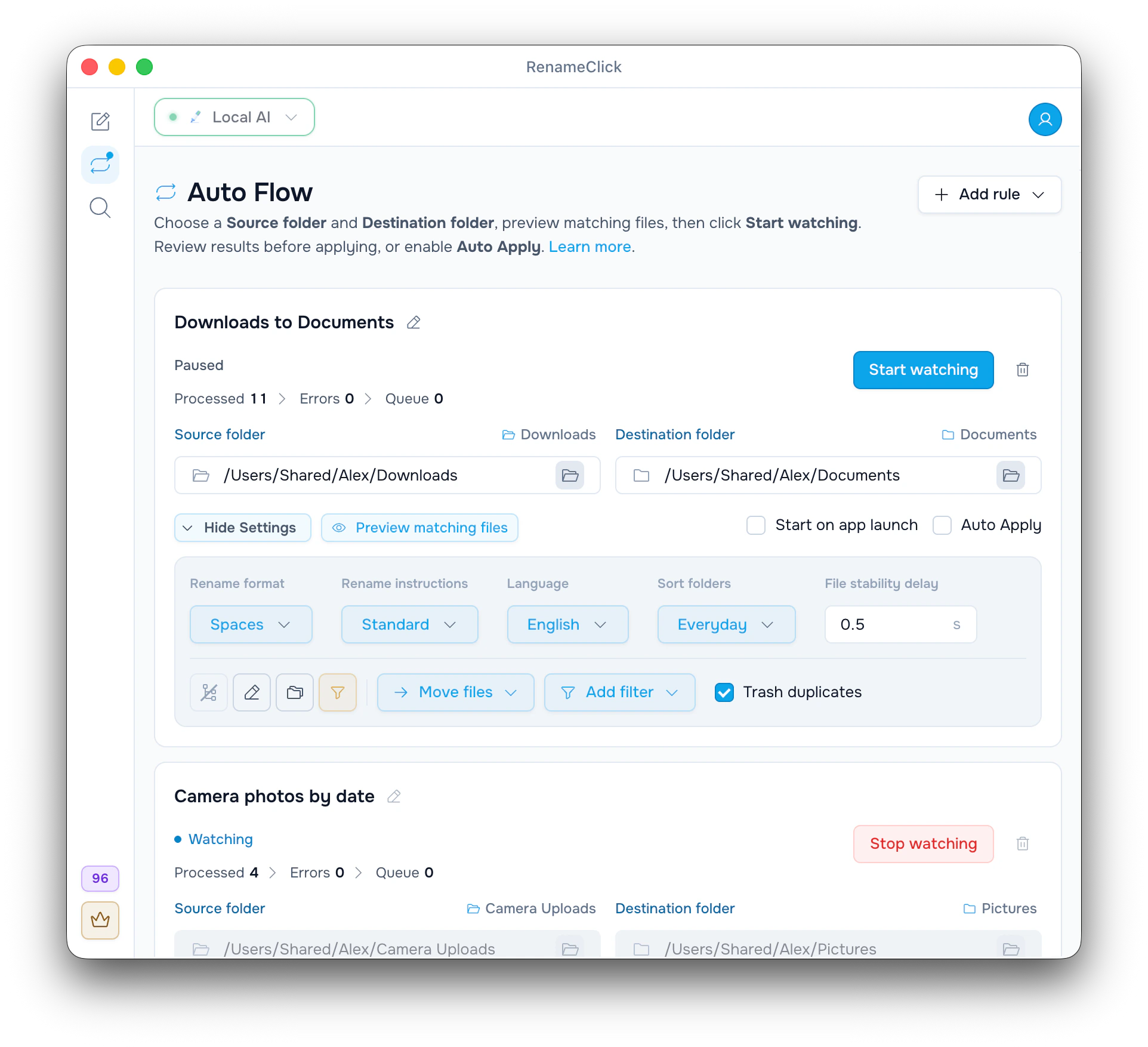
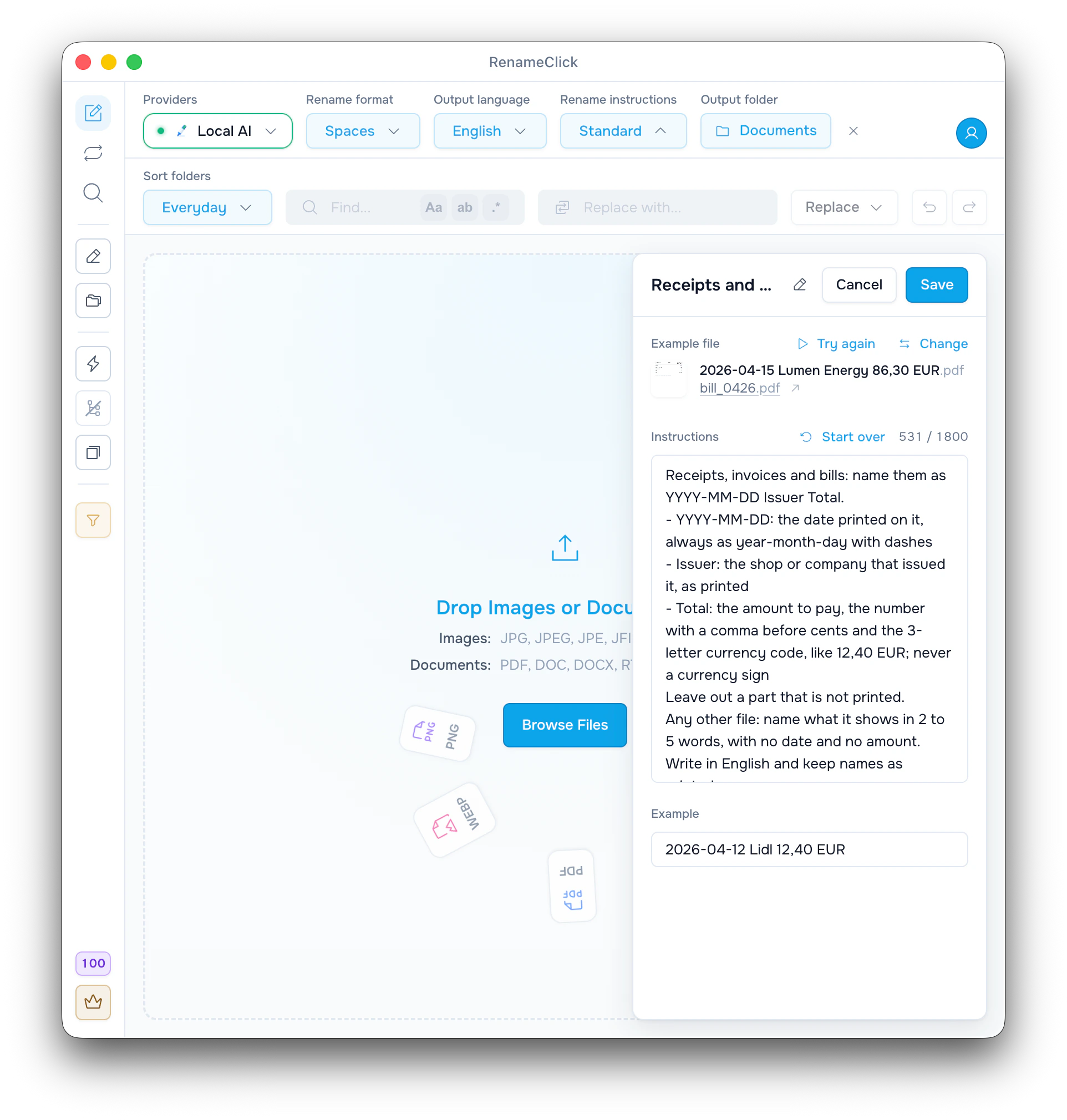
Point it at a messy folder. RenameClick reads images and documents or transcribes spoken audio locally, then turns cryptic names like 8a095-4d0f6a90008b.pdf into clear names like Blood_Test_Results.pdf. Review the suggested filename and category folder before applying anything. Or index a folder once, find a file by describing what is in it, and rename it right from the results. After its one-time model download, the Local provider works with Wi-Fi off.
Rename and sort a messy folder, find documents by what is inside, and let Auto Flow file new downloads.
Choose what should change. Naming and folder organization have separate settings.
Names and folders
Change filenames in their current folders.
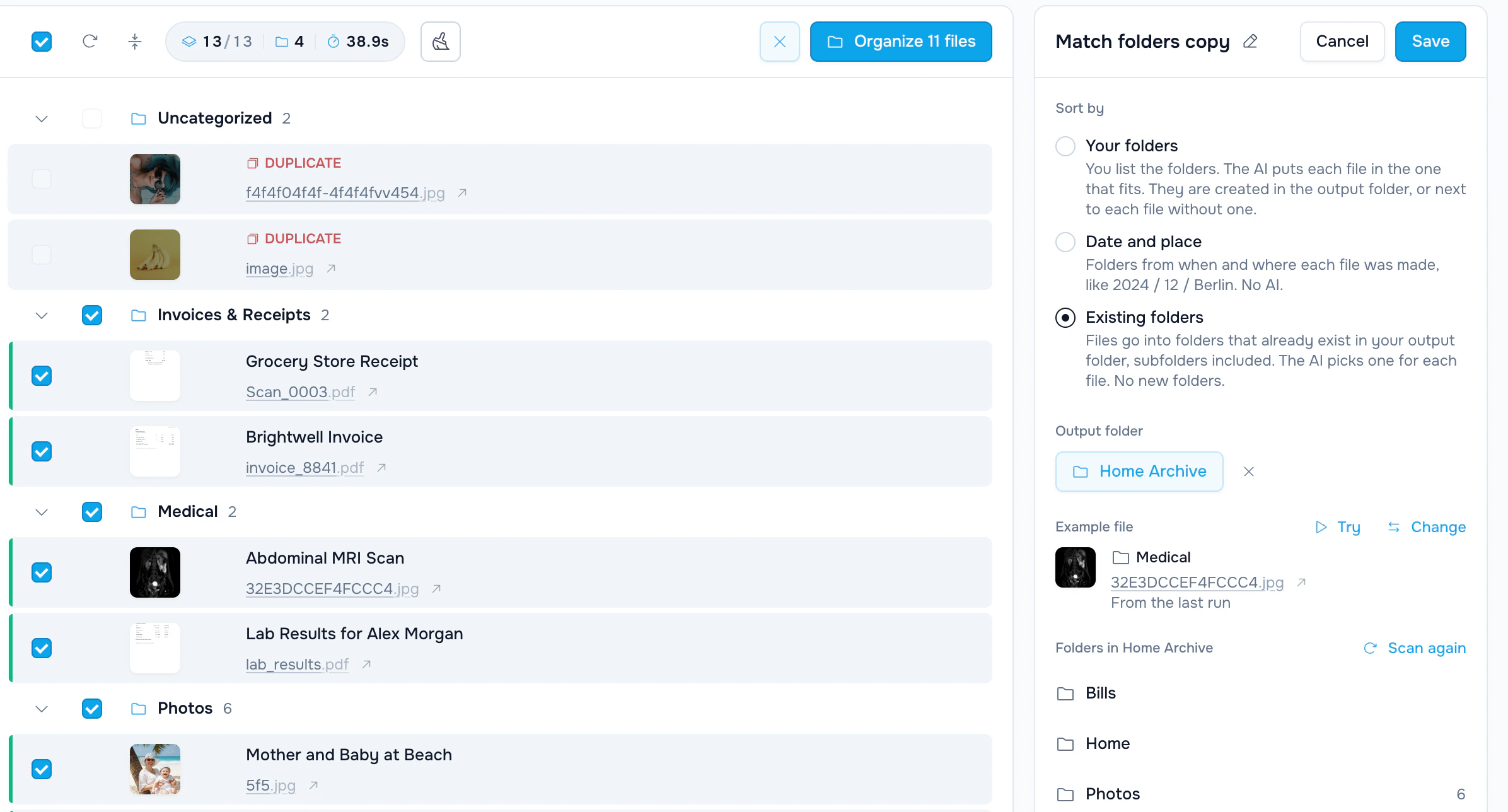
Keep the names and move files into the folders of a Sort folders set.
Apply the new name and the folder together with Organize.
Use content categories, metadata paths, or existing folders.
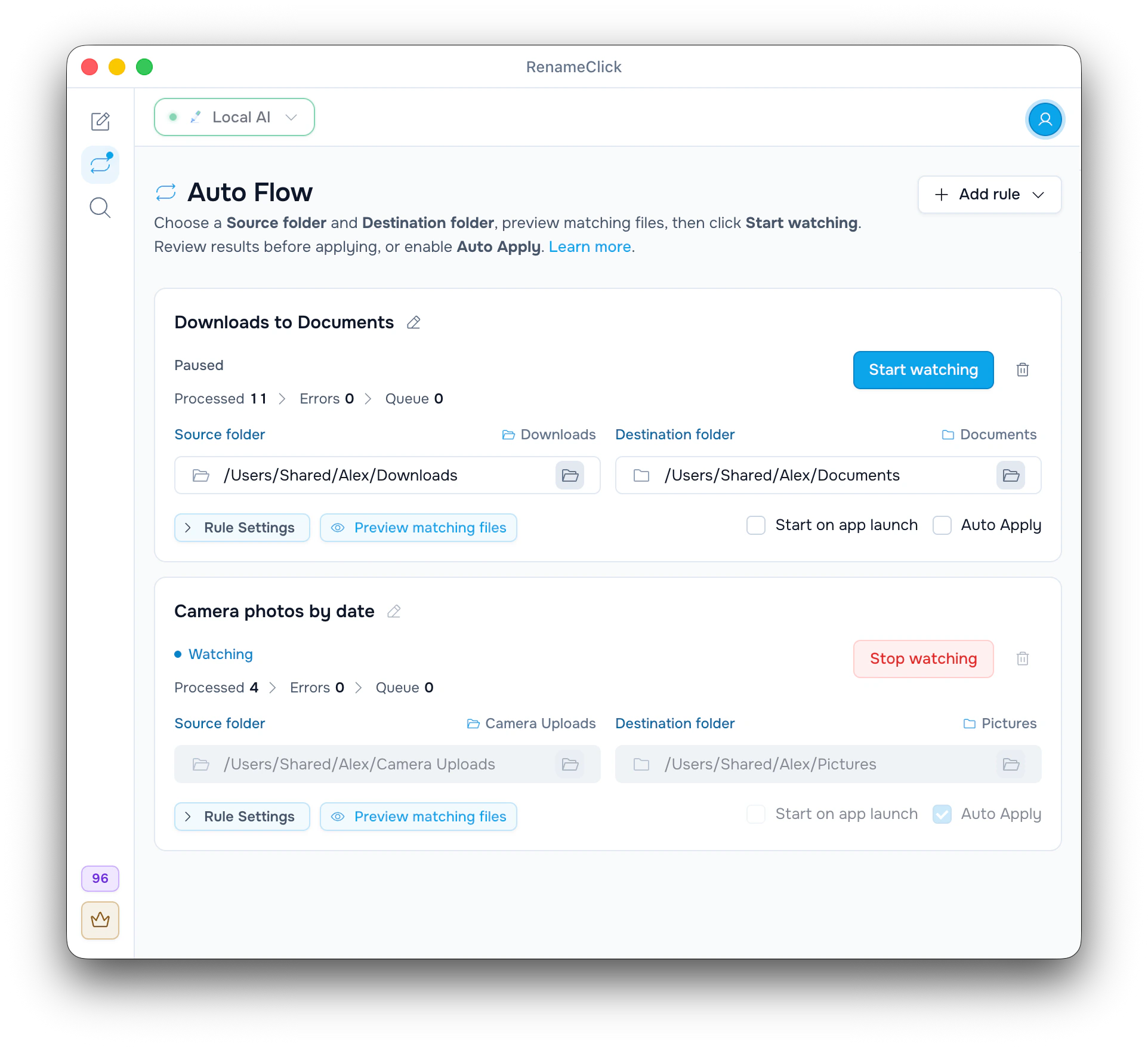
Auto Flow watches folders while the app runs; Auto Apply is optional.
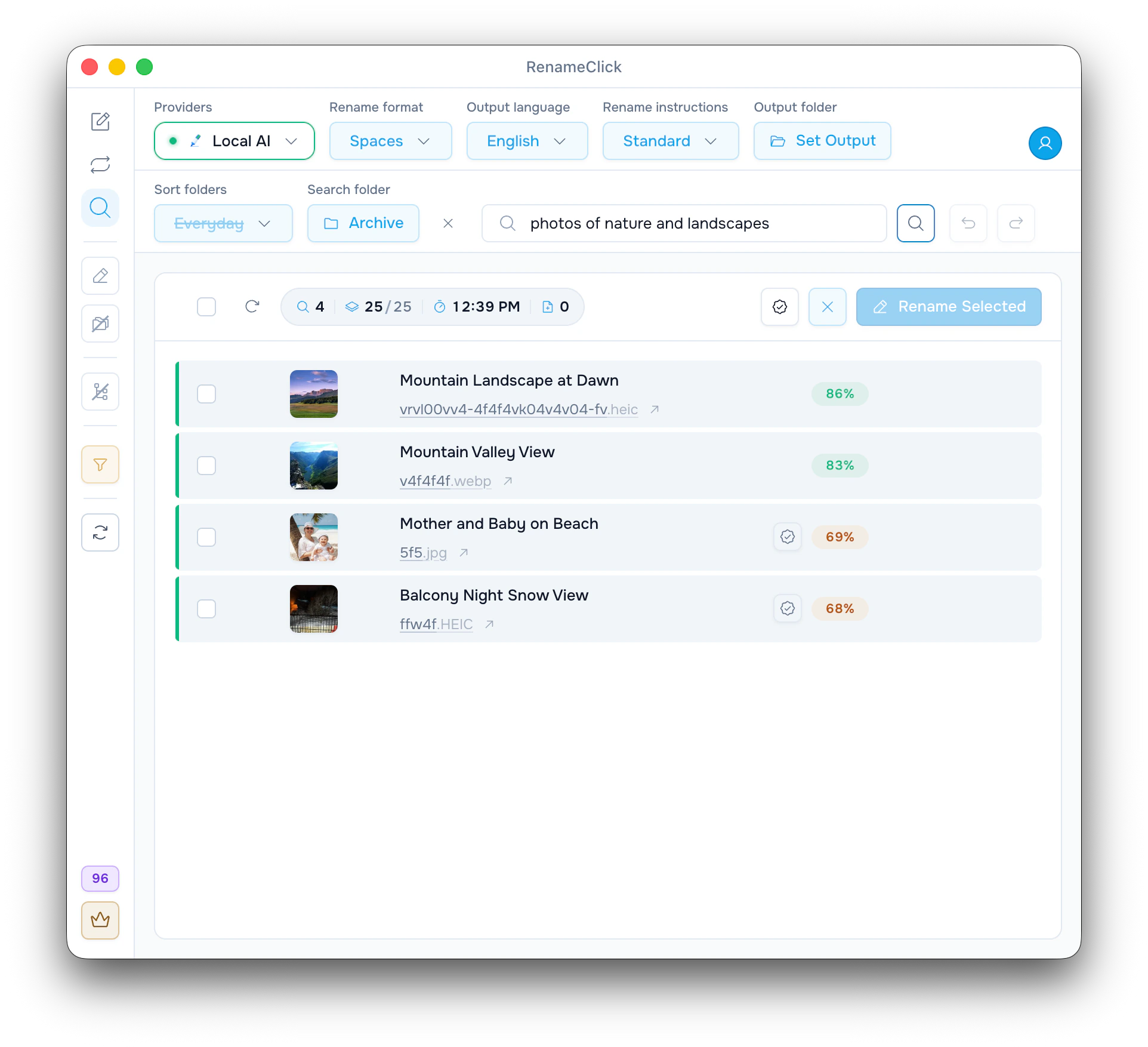
Index a folder once, describe the document or image you need, and apply the proposed name right from the results.
All supported extensions, grouped by file type.
Local audio transcription
Local transcription supplies speech context for naming. Long recordings are sampled; this does not identify songs.
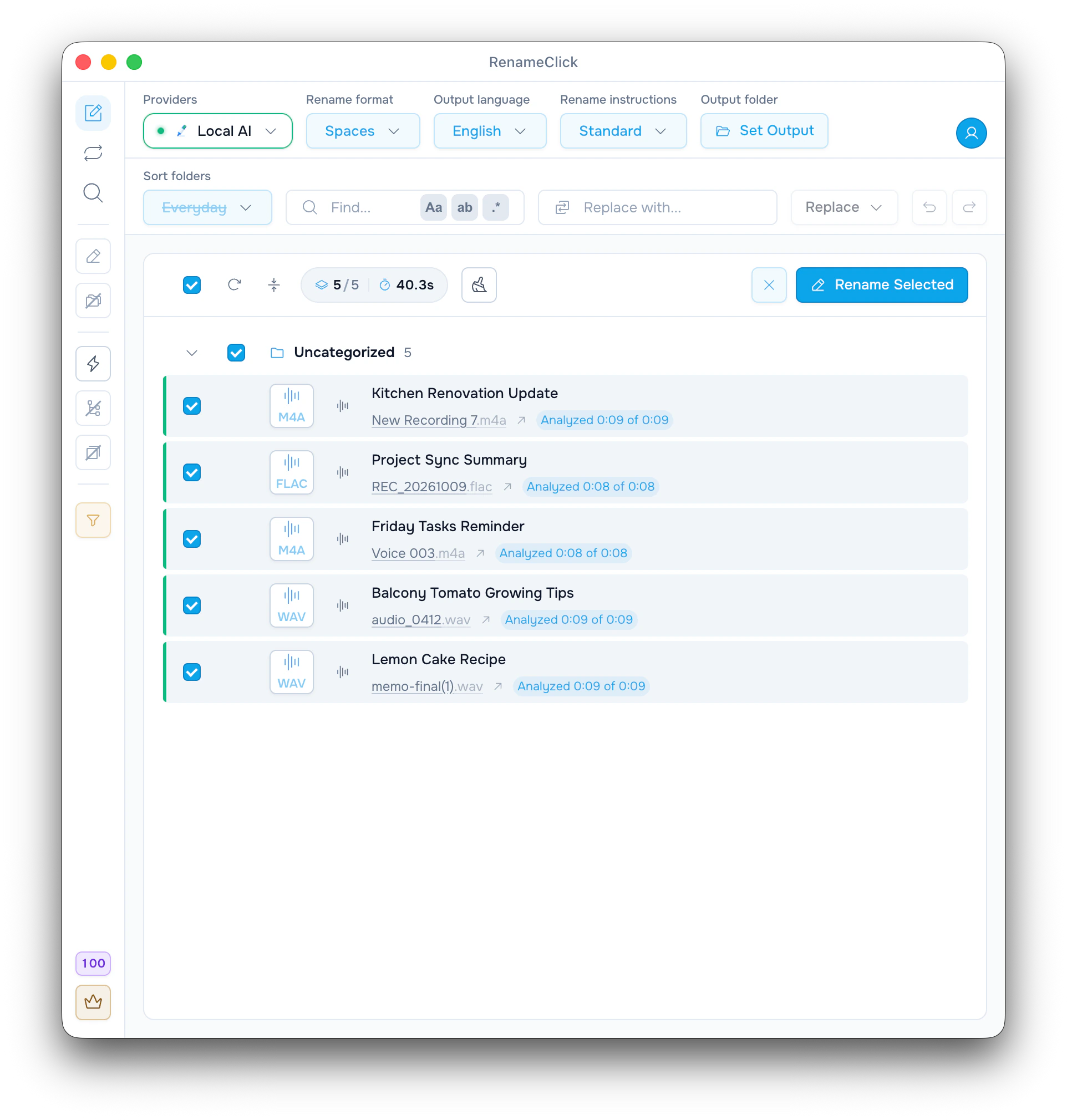
Audio stays on your device with Local AI
Choose where analysis runs
Install the built-in model, connect a model server, or use a supported cloud API.
The built-in model works offline after a one-time download, with no API costs.
RenameClick Local AIRun a model in Ollama or LM Studio and connect it by server URL. A server on another computer receives the content.
Use your own key. Usage is billed by the provider, separately from RenameClick.
 Alibaba Cloud
Add any OpenAI-compatible API by its URL: model marketplaces, company AI platforms or your own server.
Cloud providers and OpenAI-compatible APIs are available in direct macOS and Windows builds. They are excluded from the Mac App Store build.
No credit card required
Start with your own files
For ongoing use
One-time payment
Buy now, get all future features included
Choose a plan inside the app. Direct macOS and Windows licenses cover up to 3 active devices. Mac App Store purchases are separate. External AI provider fees are not included.
Local AI needs model storage and working memory. Actual memory use depends on the settings and files.
A few practical questions about processing and purchases.
Not necessarily. Local AI can use CPU fallback where supported. A suitable GPU can accelerate processing, but time and memory use depend on your hardware, settings, and files.
Local file processing can work offline after the required model downloads. Initial downloads, license activation and recovery, and Apple purchase restoration need their own connections. Cloud providers need internet for analysis.
Install Audio Transcription in AI & Models. For local filename generation, also install RenameClick Local AI and select it. Long recordings are sampled; this is for speech, not identifying songs.
One successfully changed file uses one credit. Renaming and moving it together in one action uses one credit, not two. Analysis and AI Search use no apply credits; external cloud API fees are separate.
Yes. Custom Instructions can specify fields, order, language, and missing values. With a custom prompt selected, Rename format and Output language are disabled. Check extracted fields before applying.
Direct macOS and Windows share an email-linked license for up to 3 active devices. Mac App Store purchases are separate and restored through Apple; that build excludes cloud providers.
Yes, when their contents are available locally through the sync application. RenameClick does not browse cloud storage websites. Renames and moves can also be synchronized by your storage provider.
Yes. Start Auto Flow Watch with Auto Apply off to inspect suggestions. Enable Auto Apply for a row when you want it to make changes automatically while the app runs. Turn Watch off for Undo; history is not retained across restart.
Learn a specific task: name recordings, keep original file IDs, build folder rules, or find a document.
File search
Index a local folder once, search it by what its files contain, check the matches, and rename or move them right from the results.
Read article →
Audio
Name voice notes, meetings and lectures by what is said in them, with local speech transcription. Set up RenameClick, add recordings, check the names.
Read article →
Naming formats
Templates and examples for documents, photos, screenshots, scans and recordings, the mistakes that break sorting, and the RenameClick setting for each.
Read article →
Folder automation
Set up Auto Flow rules for Downloads, camera uploads and scans that rename, sort, move or copy new files. Review the results, then apply or undo.
Read article →
File renaming
Batch rename scans, PDFs, photos and screenshots by content. Pick a provider and name format, review the suggestions, then apply or undo on Mac and Windows.
Read article →