
On this page
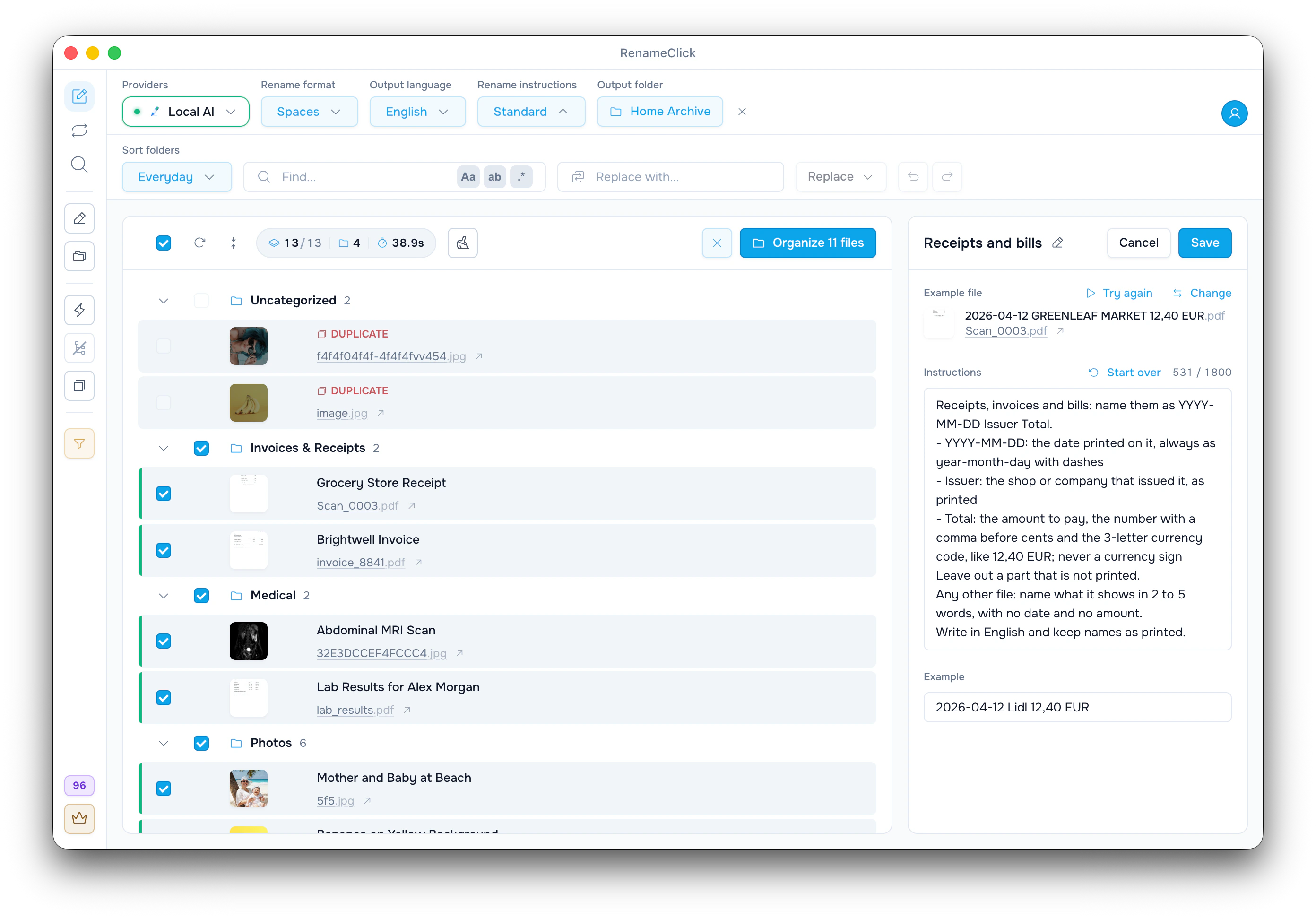
Use instructions when the name needs specific fields
With the Standard instructions, RenameClick describes a file: Scan_0003.pdf becomes Grocery Store Receipt. Custom Instructions say which fields to take and in what order. With the Receipts and bills starter, the same file becomes 2026-04-12 GREENLEAF MARKET 12,40 EUR.
Instructions can't add a field the file doesn't show, and they don't check the values. Review the names before applying.
Start from Receipts and bills and test it with Try
- In the header, open the Rename instructions menu (it shows Standard) and choose New instructions… to open the editor beside the file list.
- Under Start from, click Use on Receipts and bills.
- Under Example file, click Change to pick a receipt from the list, or Choose a file… to pick one from disk.
- Click Try. The new name appears over the current one; nothing is renamed. With a cloud provider, Try sends the file to it.
- If needed, edit the text and click Try again. Then click Save; the instructions are selected right away.
The starter text in the Instructions field:
Receipts, invoices and bills: name them as YYYY-MM-DD Issuer Total.
- YYYY-MM-DD: the date printed on it, always as year-month-day with dashes
- Issuer: the shop or company that issued it, as printed
- Total: the amount to pay, the number with a comma before cents and the 3-letter currency code, like 12,40 EUR; never a currency sign
Leave out a part that is not printed.
Any other file: name what it shows in 2 to 5 words, with no date and no amount.
Write in English and keep names as printed.
The Example field holds 2026-04-12 Lidl 12,40 EUR. The model reads it too, so write it in the exact shape you want. The counter, 531 / 1800 here, counts the text and the example against Prompt Length in AI settings.
Instructions for contracts, payslips and bank statements
Keep the starter's shape and change the fields. Paste one of these into new instructions, then add the starter's last three lines, from Leave out a part to Write in English. The Example line moves into the Example field and shows the name to expect (the names are illustrative).
Contracts and agreements: name them as Type - Party - YYYY-MM-DD.
- Type: the kind of contract in 1 to 3 words, like Lease or NDA
- Party: the other company, short form without Ltd or GmbH
- YYYY-MM-DD: the date it was signed
Example: Lease - Northfield Properties - 2025-03-01
Payslips: name them as YYYY-MM Payslip Employer Net.
- YYYY-MM: the pay period, not the payment date
- Employer: the company that pays, as printed
- Net: the net pay with a comma before cents and the currency code
Example: 2026-03 Payslip Halden Logistics 2410,55 EURBank statements: name them as Bank Statement YYYY-MM Last4.
- Bank: the bank's name as printed
- YYYY-MM: the month the statement covers, not the day it was issued
- Last4: the last 4 digits of the account number
Example: Harbor Bank Statement 2026-03 4821Instructions name every file in the batch, even a stray photo. Keep the Any other file line so such a file gets a short description, or select the instructions only for a batch of that kind.
Handle missing fields and pick the right date
With Leave out a part that is not printed, a receipt without a total should get just 2026-04-12 GREENLEAF MARKET. A rule like use UNKNOWN writes that word into the name: 2026-04-12 UNKNOWN 12,40 EUR.
Name the date you mean. An invoice has an issue date and a due date; asking for the date leaves the choice to the model. The date a file was created is not part of what instructions read.
A scanned PDF is read from its first page, so a total printed only on page 2 can't reach the name. What the AI saw on a row shows the text that was read.
Put the shape and language in the text
While your instructions are selected, Rename format and Output language are disabled, so the text sets the whole name. Write separators into the pattern and the Example. A slash becomes a space; a dot stays, so 12.40 EUR keeps its dot.
For German names, change Write in English to Write in German. The starter keeps names as printed, and the shop came out as GREENLEAF MARKET; for Greenleaf Market, ask for the issuer in Title Case and change the Example.
Choose Standard to get the format and language menus back. In Auto Flow, each rule can use its own instructions.
Run the batch, check it and apply
- Add the receipts and click Run AI, or let Auto mode start it.
- Compare each name with its file. Click a name to fix a single mistake.
- If the same mistake repeats, edit the instructions and click Save. The toolbar says Instructions changed; click Re-run.
- Click Rename Selected, or Organize with Sort on. Undo puts the old names back.
Folders are separate: a line like put receipts in Finance has no effect, and the Sort folders set picks the folder.
Every editor control and limit is in the Custom Instructions reference.