
On this page
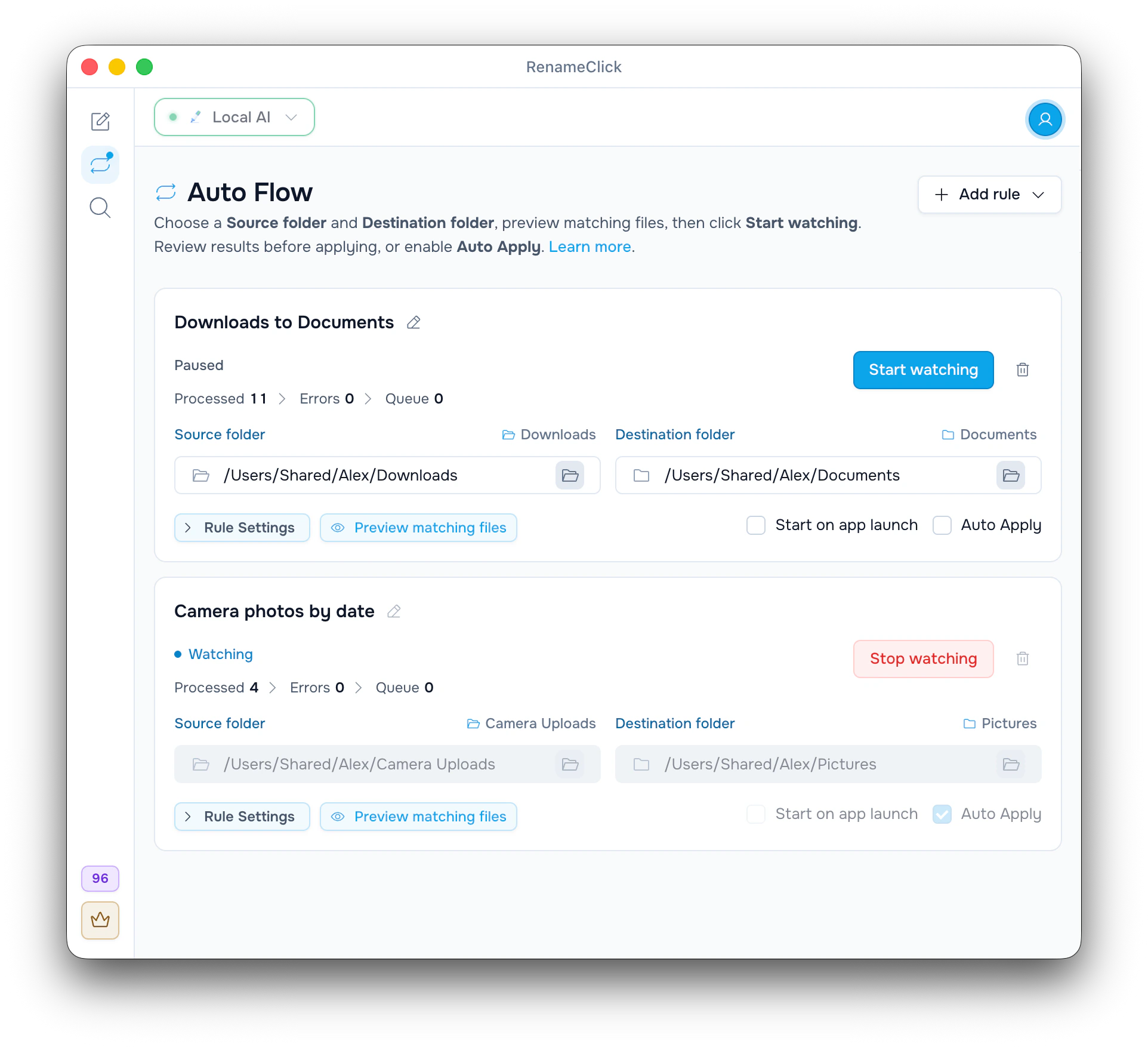
Set up a rule
A rule watches one Source folder while RenameClick is running. It renames, sorts, moves or copies new files into its Destination folder.
- Open Auto Flow, click Add rule and pick Blank rule or a template: Review incoming documents, Organize photos by date or Copy incoming documents.
- Name the rule and choose the Source folder and the Destination folder.
- In Rule Settings, turn Rename and Sort on or off, pick the file types, and choose Move files or Copy files.
- Click Preview matching files, then Start watching. Leave Auto Apply off for the first batch.
With Rename and Sort both off, a rule just moves or copies files, with no AI and no apply credits.
Example 1: Downloads into Documents folders
This is the Downloads to Documents rule from the screenshots: Rename format Spaces, Rename instructions Standard, Language English, Sort folders Everyday (12 folders), Move files, Trash duplicates on, Auto Apply off.
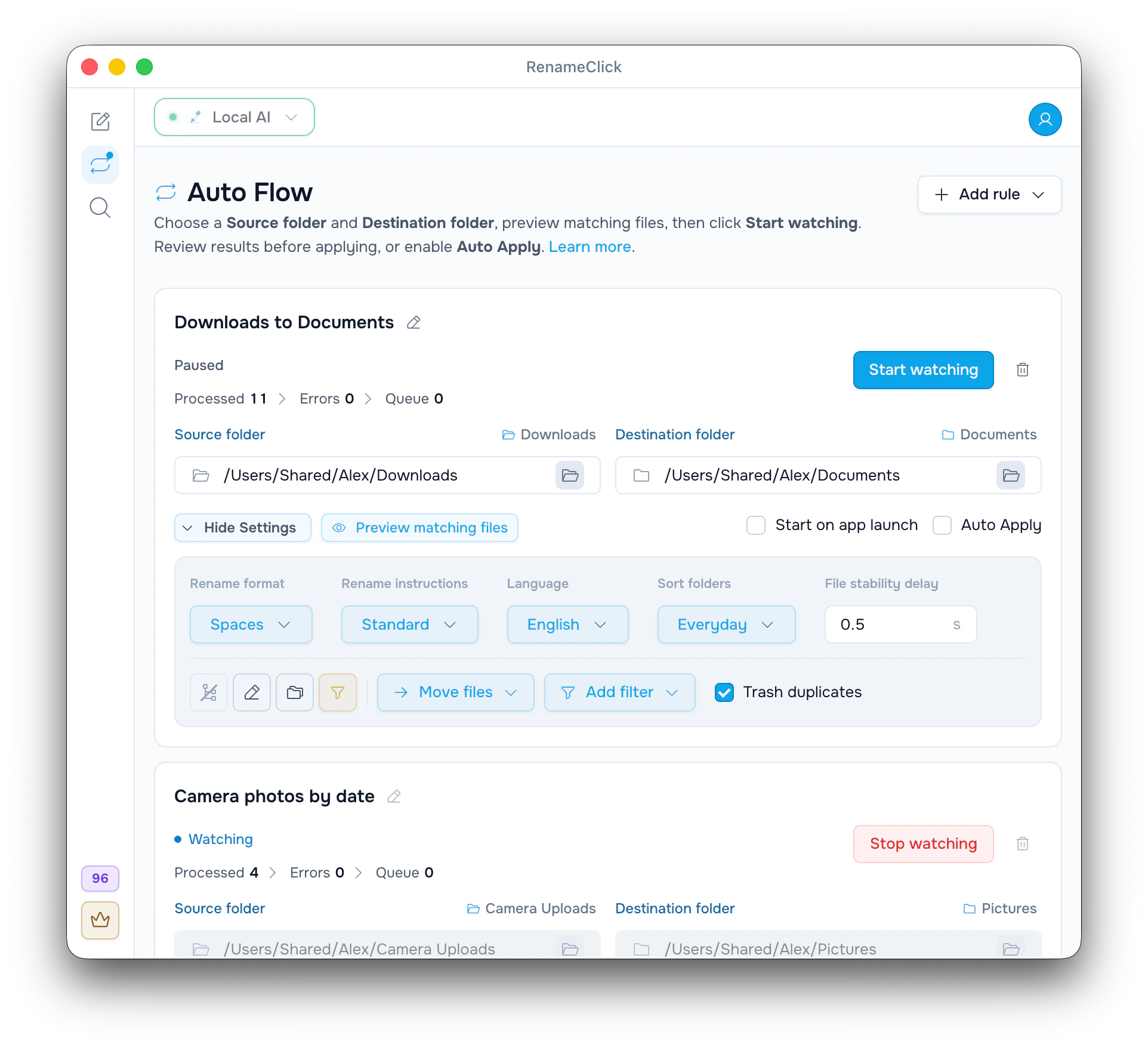
After Start watching, the rule reads the files already in Downloads, then each new one. The card shows Processed 11. Click it to open Rule details.
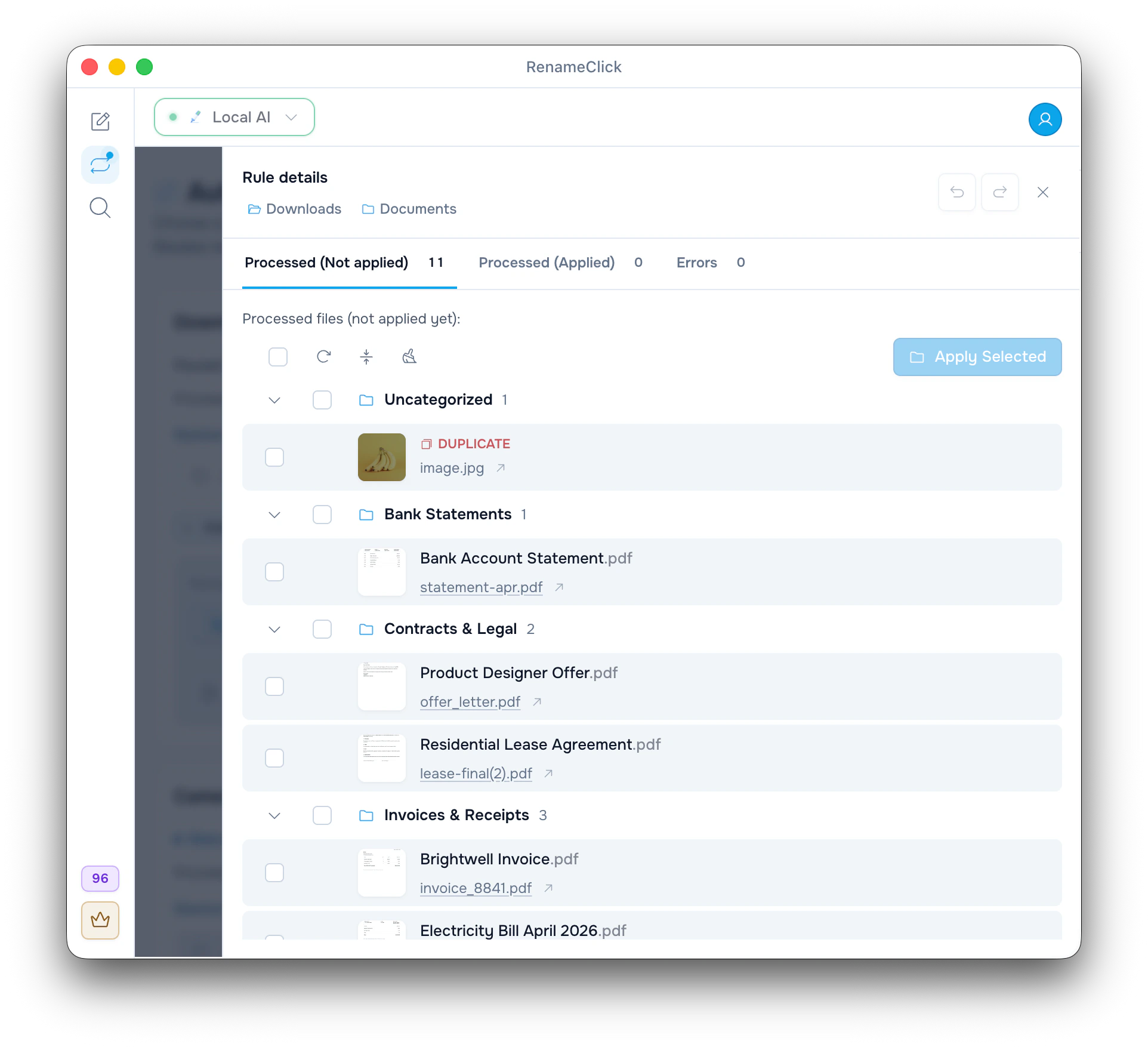
| Original | Proposed name | Folder |
|---|---|---|
| statement-apr.pdf | Bank Account Statement.pdf | Bank Statements |
| offer_letter.pdf | Product Designer Offer.pdf | Contracts & Legal |
| lease-final(2).pdf | Residential Lease Agreement.pdf | Contracts & Legal |
| invoice_8841.pdf | Brightwell Invoice.pdf | Invoices & Receipts |
| image.jpg | DUPLICATE, goes to the Trash | Uncategorized |
Trash duplicates compares file contents, never just names. It keeps one copy and marks the others DUPLICATE, like image.jpg. It is off for new rules and uses no AI or credits.
Fix a name with the pencil if needed. Tick files or a folder group and click Apply Selected: Bank Account Statement.pdf moves to Documents/Bank Statements. Each moved file uses one apply credit; duplicates go to the Trash for free. To take only PDFs, select PDF in the file-type filter.
Example 2: camera uploads into date folders
Click Add rule, choose Organize photos by date, and set Camera Uploads as the Source folder and Pictures as the Destination folder. The template keeps the names and sorts with the Capture date set into year, month and day folders. In the screenshot this rule is watching with Auto Apply on.
A photo taken on 14 October 2026 lands in Pictures/2026/10/14 as IMG_4521.HEIC (an illustrative name). No AI reads the pictures; the folders come from photo metadata. Each moved photo still uses one apply credit. Pitfall: photos saved from chat apps often have no date taken, so they go by the day the file was created.
Example 3: scans into your existing archive
Point the rule at the folder your scanner app saves to. As the destination, use an Archive folder that already has subfolders, such as Car, Health and Taxes. Settings: file types PDF, Sort folders Match folders, Auto Apply off, and your own Rename format $date{YYYY-MM-DD} $1 (New format… in the Rename format menu).
The AI picks an existing subfolder, up to three levels deep. Scan_0007.pdf could become Archive/Car/2026-10-14 Car Insurance Renewal.pdf (an illustrative result); the date is the day the scan was saved. In a folder of years, such as Taxes/2025 and Taxes/2026, each document goes to its own year. A scan that fits nowhere goes to the top of Archive.
Pitfalls: a scanned PDF is named from its first page. If your scanner app writes long PDFs slowly, raise File stability delay to a few seconds.
Narrow a rule with filters
Add filter narrows a rule. A file must match every filter.
| Filter | Example | Effect |
|---|---|---|
| Name contains | Invoice | Case-sensitive: invoice does not match. |
| Name does not contain | draft | Skips drafts. |
| Last modified more than … days ago | 7 | Only files untouched for a week. Newer ones wait. |
Preview matching files checks up to 200 files and gives a reason for each skip, such as File was modified too recently. It runs no AI and changes nothing.
Start watching, review, then turn on Auto Apply
Start watching also takes the files already in the source, so a full Downloads folder gives a long first list. Each file waits until it stops changing for the File stability delay, 0.5 s by default.
With Auto Apply off, results wait in Rule details until you apply them. Turn Auto Apply on after checking a batch. Stop watching before you change settings. When the monthly apply credits run out, an Auto Apply rule pauses with No credits left.
Undo an applied change
- Click Stop watching on the rule.
- Open Rule details and click Undo at the top to reverse the last apply.
- Or select files in Processed (Applied) and click Undo selected.
Files get their old names and folders back, and empty folders the rule created are removed. Undo of a copy removes only the copy, and a trashed duplicate comes back from the Trash. Credits are not returned. Undone files return to Processed (Not applied), and the rule processes them again after Start watching.
Run several rules while the app is open
Each rule has its own settings, and watching rules run side by side. Two rules can share a source if their file types differ. One rule's destination can also be the next rule's source.
See the guide to connecting Auto Flow rules for a two-stage example.
Auto Flow works only while RenameClick is open. Start on app launch starts the chosen rules with the app; there is no calendar schedule.
See the Auto Flow documentation for every control and folder restriction.
See the AI file sorter page for more Downloads rules and limits.