
On this page
When a second rule is worth it
One rule can rename and sort a file in one step. Use two rules when the steps need different settings or timing, for example to name every download at once and file it into your archive later, after a look.
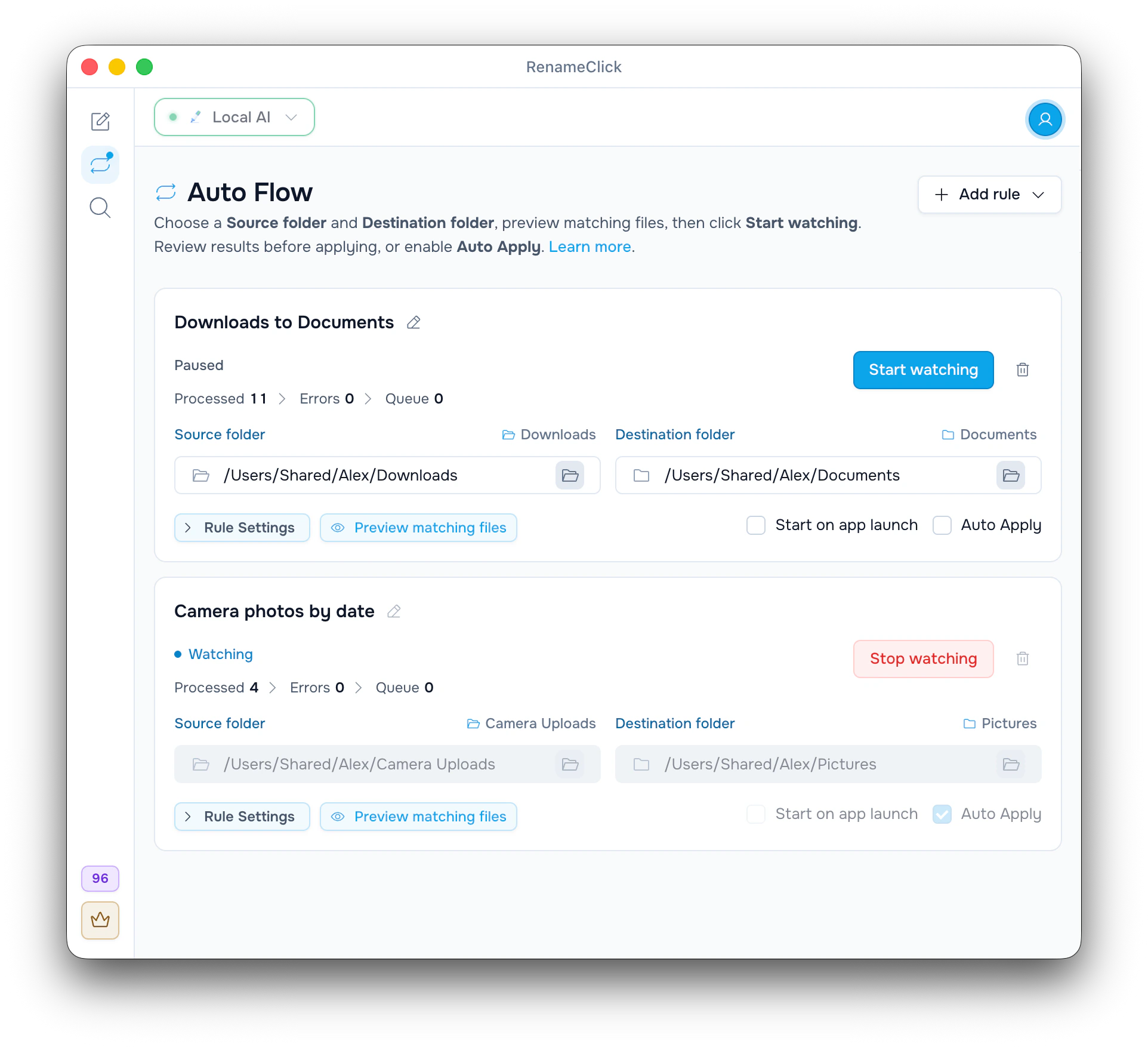
Downloads → Rule 1: Name downloads → Inbox → Rule 2: File into Archive → Archive/<existing subfolder>Rules connect through folders. Inbox is the Destination folder of Rule 1 and the Source folder of Rule 2. The order of the rules on screen does not matter.
Set up the two rules
| Setting | Rule 1: Name downloads | Rule 2: File into Archive |
|---|---|---|
| Source folder | Downloads | Documents/Inbox |
| Destination folder | Documents/Inbox | Documents/Archive |
| File types | ||
| Rename | On: Standard, Spaces, English | Off, so the name from Rule 1 stays |
| Sort | Off | On: Match folders |
| File action | Move files | Move files |
| Auto Apply | On, once the first batch looks right | Off |
- Click Add rule, choose Blank rule and set up Rule 1 as in the table.
- Add Rule 2 the same way. Its Source folder is the Inbox folder you chose as the destination of Rule 1.
- Make sure Archive already has subfolders, such as Bills, Car, Health and Taxes. Match folders picks among them.
- Click Start watching on both rules.
One file on its way, with illustrative names:
Downloads/invoice_8841.pdf
→ Inbox/Brightwell Invoice.pdf (Rule 1 renames and moves it)
→ Archive/Bills/Brightwell Invoice.pdf (Rule 2 picks the folder)What moves a file to the next stage
A file reaches Inbox only when Rule 1 applies its change. While it waits in the Processed (Not applied) list of Rule 1, it is still in Downloads. With Auto Apply on in Rule 1, it moves right after processing.
A watching Rule 2 gets the file at once. With its Auto Apply off, the proposed folder waits in its Rule details until you click Apply Selected.
Each applied stage uses its own apply credit. The file above uses two, one for the rename and one for the move. One rule that renames and sorts together uses one. Check both stages: a good name does not guarantee a good folder.
Let files collect while Rule 2 is stopped
Click Stop watching on Rule 2, and Inbox fills up with renamed files. When you click Start watching again, Rule 2 scans Inbox and processes everything already there.
Nothing runs while RenameClick is closed. Start on app launch makes a rule start watching when the app opens.
Setups that Auto Flow rejects
- A loop. If a later rule sent files back to Downloads, the rule that closes the loop would not start: These rules pass files to each other in a loop.
- Two rules on one source with overlapping file types, such as a PDF rule and an all-files rule on Downloads. PDFs in one rule and images in the other are fine.
- A destination that contains its source. With Inbox inside Archive, Rule 2 would show Destination folder must not contain source folder.
- Files in subfolders. If Rule 1 sorted into subfolders of Inbox, Rule 2 would see them only with Recursive Folders on.
A rule can also use its source folder as the destination, to rename files in place or sort them into its subfolders. It never processes its own output again.
See folder connections and restrictions in the Auto Flow documentation.
Find the stage that stopped
- Still in Downloads: look at Processed (Not applied) and Errors of Rule 1.
- In Inbox, but Rule 2 shows nothing: Rule 2 is stopped, its file types exclude the file, or the file sits in a subfolder while Recursive Folders is off.
- In the Errors of Rule 2: check the provider and the access to Archive.
To undo, stop both rules and undo the later stage first: Undo in Rule 2 brings the file back to Inbox, then Undo in Rule 1 returns it to Downloads with its old name. Rule 1 cannot undo a file that Rule 2 has already moved on.
See the Auto Flow setup guide for single-rule examples, filters and Undo.