
On this page
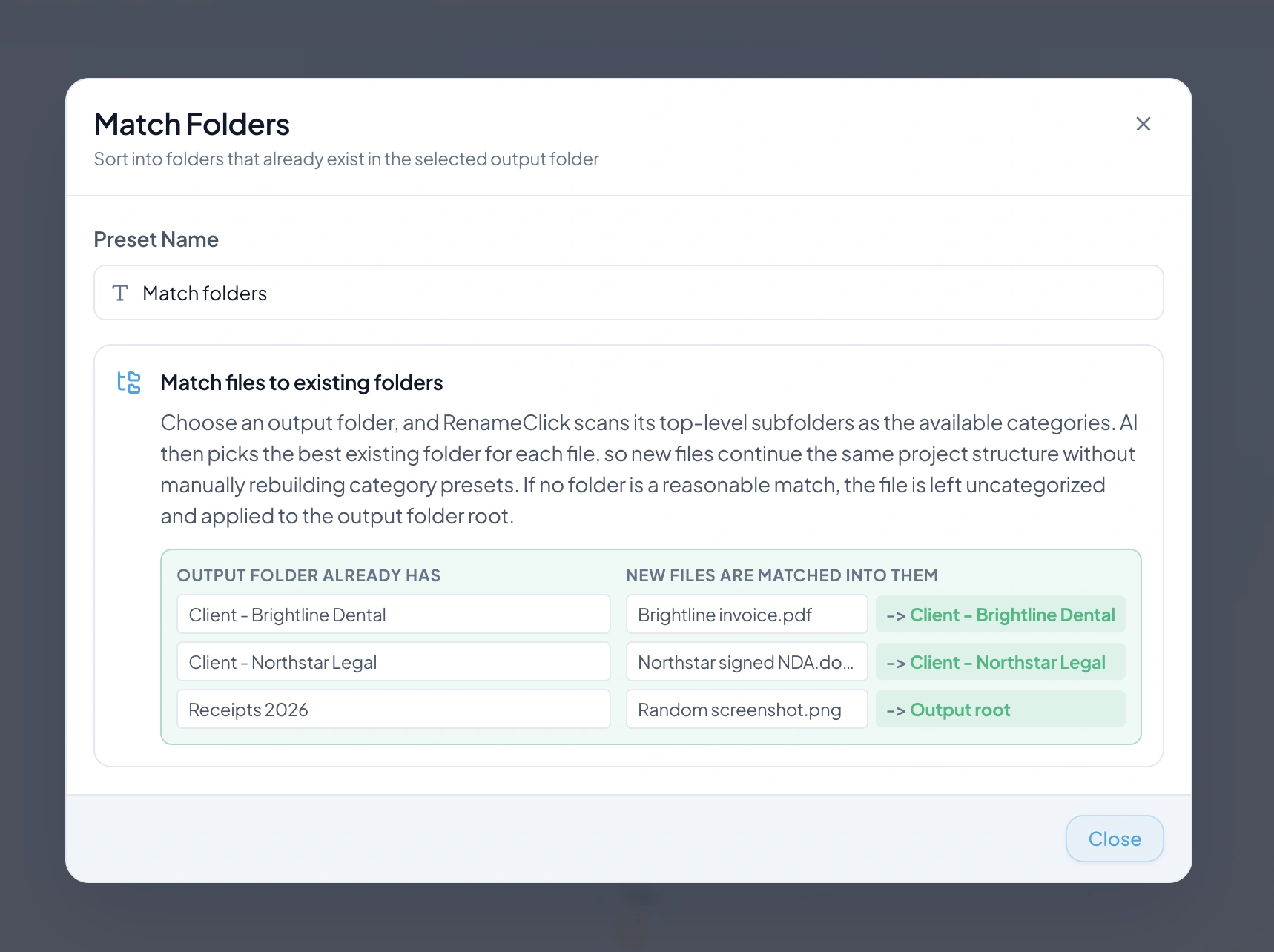
Use your destination as the folder list
Match Folders reads the names of the destination’s existing top-level subfolders. AI analyzes each supported file and selects one of those folders. You do not need to recreate the folder list as an AI category preset.
This fits an archive with named clients, suppliers, or projects. It is less useful when folder names are vague codes with no connection to the file’s contents: the model does not know an internal codebook you have not provided.
Prepare the destination and run a batch
- Choose the output folder that contains your client or project folders.
- Enable Categorize and select Match Folders.
- Use Categorize only to keep filenames, or enable Rename as well.
- Add supported files and let RenameClick suggest destinations.
- Check the chosen folder for each file, deselect uncertain rows, and apply the selected changes.
Only the top-level subfolders are choices. RenameClick does not recursively learn the contents of an entire client archive or build a new nested client tree.
Match Folders supports up to 50 folder names. A destination with more folders produces a warning; choose a narrower destination rather than assuming all folders were included.
Make folder names distinguishable
Names containing an actual client or project name give the model more to work with than Project 1 and Project 2. Check whether the distinguishing information also appears in the incoming document.
If your categories need explanations, use a custom AI Categories preset instead: each category can have a description. If the destination comes from a date or camera field, use Metadata Folders.
See sorting preset settings for the full reference.
Check files without a match
Match Folders does not invent a new destination. In an ordinary workflow with a separate output folder, an unmatched file stays uncategorized and is applied to the output folder root.
Check those rows before applying if you want to keep uncertain files at their original location. An empty category is a result to review, not proof that the file belongs nowhere.
Watch for new files
Choose Match Folders as an Auto Flow row’s sorting preset. That row can send incoming files into the destination’s existing subfolders, with Auto Apply off for approval or on for automatic moves.
In Auto Flow you can also use the same source and destination for Match Folders. This watches files directly inside that folder and routes them into its subfolders; recursive watching is disabled. If no subfolder matches, the file stays in place and appears as an error instead of being processed repeatedly.
See setting up an Auto Flow row for the full reference.
For processing in more than one stage, read connecting rules.