Auto Flow
Set up folder rules, filter incoming files, move or copy them, and review changes before applying.
Updated Applies to RenameClick 2.18.0
Auto Flow watches folders while RenameClick is running. Each rule chooses which files to process, where they go, and whether to rename, sort, move, or copy them. You can review the results first or enable Auto Apply.
Set Up a Rule
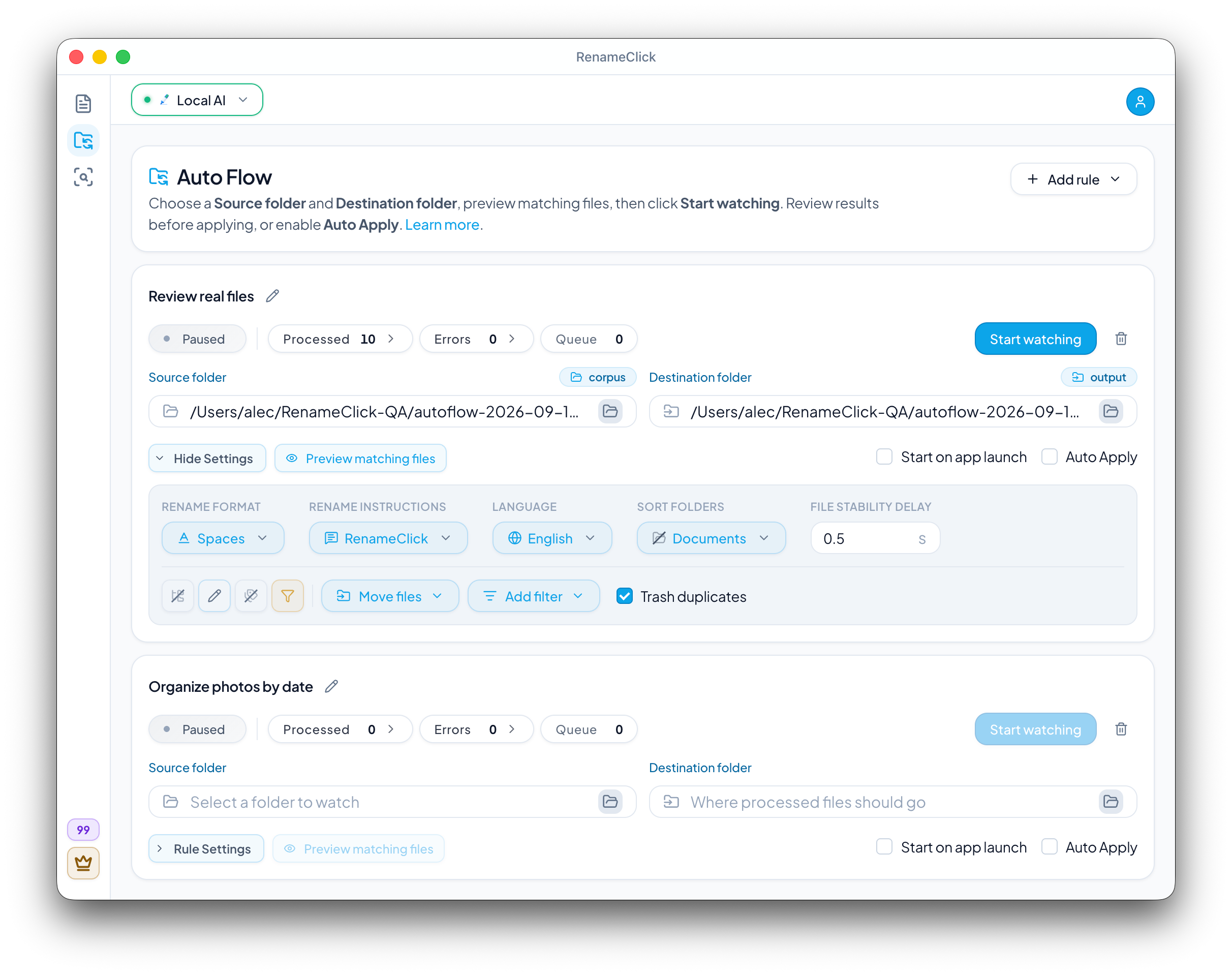
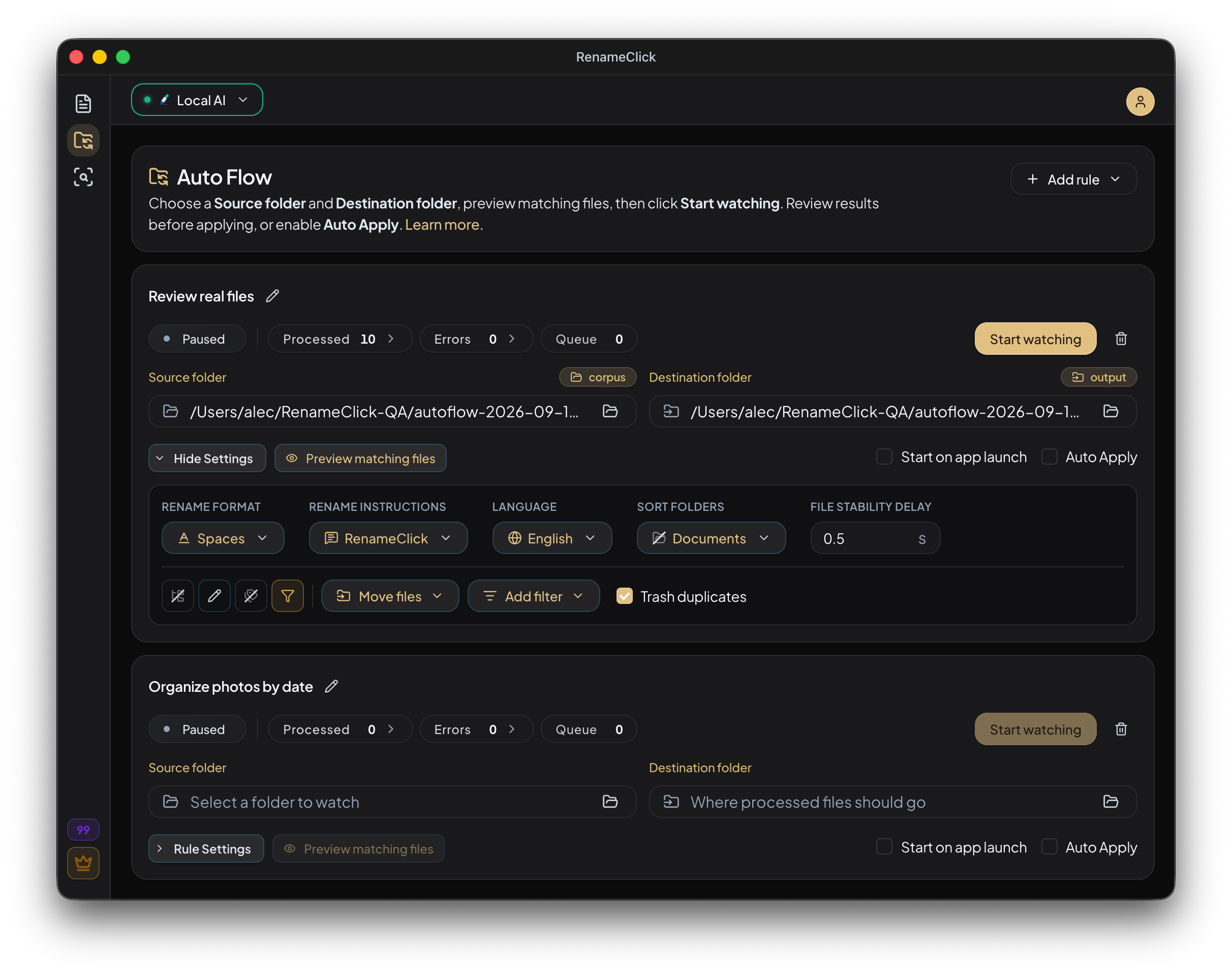
- Click Add rule. Choose a blank rule or a starting point for reviewing documents, organizing photos by date, or copying incoming documents.
- Give the rule a name and choose its Source folder and Destination folder. The destination can be the source folder itself when the rule renames or sorts; see Same Folder as Source.
- Select the file types to include. Enable subfolders if you want the rule to look inside them too.
- Choose Move files or Copy files. Enable renaming or sorting only if you need them.
- Add any file filters, then use Preview matching files to check your selection.
- Click Start watching. Leave Auto Apply off to review the first results.
Each rule has its own settings. New rules start with Auto Apply, Trash duplicates, and Start on app launch off. Stop a rule before editing it.
File Filters
Use Add filter to combine any of these conditions:
| Filter | What it checks |
|---|---|
| Name contains | The filename includes the text you enter |
| Name does not contain | The filename excludes the text you enter |
| Minimum size | The file is at least this size in MB |
| Maximum size | The file is no larger than this size in MB |
| Last modified more than | The file was last changed more than the specified number of days ago |
All conditions must match. Name filters are case-sensitive: Invoice and invoice select different names. File types and the subfolder setting also limit what the rule can process.
Preview matching files checks a sample of up to 200 files and explains why each file matches or is skipped. The counts describe that sample, not necessarily the whole folder. Preview does not run AI, change files, or predict copy conflicts and duplicate cleanup. After changing settings, click Check again to refresh it.
Move, Copy, Rename, and Sort
Move files sends files to the destination. Copy files keeps the source files and creates copies at the destination. Both can use renaming and sorting, or work on their own.
To transfer files without AI, turn both Rename and Sort off. Auto Flow keeps the original names and places the files directly in the destination. This mode needs no AI model and uses no apply credits. It still accepts only supported file types.
For renaming, choose your instructions, format, and output language. A custom instruction defines the complete filename, so the ordinary format and language controls are disabled while it is selected. For sorting, choose a sorting preset.
In Copy mode, unchanged originals are not copied again each time the folder is checked or the app restarts. If an identical copy already exists at the intended destination, Auto Flow skips that copy without using a credit. A different file with the same target name gets a numbered filename instead of being overwritten.
Trash Duplicates
Trash duplicates is off by default. When enabled, Auto Flow compares the contents of eligible files in the source folder, keeps one copy, and sends the extra identical files to the operating system’s Trash or Recycle Bin. The retained file follows the rule’s normal move or copy action. Matching names alone do not make files duplicates.
With Auto Apply off, review the proposed duplicate cleanup before applying it. With Auto Apply on, cleanup happens automatically. This action uses no AI or apply credits.
A Duplicate badge beside the filename identifies duplicate cleanup records in Not applied, Errors, and Applied. Move duplicate to Trash in Not applied is a proposed action. Moved to Trash in Applied confirms that it completed. Starting with 2.16.1, new duplicate cleanup operations support Undo and Redo while watching is stopped.
If a duplicate or its remaining copy changes before Apply, cleanup stops for that file. Stop watching and use Re-run to read the current files and check whether they are still identical, even if the remaining copy has already moved to the destination. Re-run does not send anything to Trash. Review the refreshed result and apply it separately. A file that is no longer a duplicate returns to the rule’s normal processing.
Watch and Auto Apply
| Setting | Behavior |
|---|---|
| Watching, Auto Apply off | Check eligible source files and incoming files; results wait in Processed for review |
| Watching, Auto Apply on | Process eligible files and apply changes automatically |
| Stopped | Stop monitoring; inspect results, edit the rule, or use available Undo and Redo |
Use Start watching and Stop watching to control each rule. Auto Flow works while RenameClick is running and processes files as they arrive after a stability check. It does not run on a calendar schedule or while the app is closed or the computer is off.
Folder Connections and Restrictions
Use one rule’s destination as another rule’s source to process files in stages. A file reaches the next source after the earlier stage is applied, not when a suggestion is generated.
The folder connections define the route. The order of rules on screen does not set their execution order. If the next rule is stopped, files stay at the intermediate location. Starting it checks that source for eligible files.
Cycles are rejected. Rules with the same source and overlapping file-type filters are also rejected. Use separate sources or non-overlapping file types to resolve those conflicts. Each rule avoids processing its own output repeatedly; destinations can still be sources for other rules.
If an earlier stage creates nested folders, enable subfolders in the next rule when needed. See connecting Auto Flow rules for a configuration guide.
Same Folder as Source
A rule can use its source folder as the destination when Rename, Sort, or both are on. Files are renamed where they are, or moved into subfolders of that folder; a Match Folders rule chooses among up to 50 existing top-level subfolders. Including subfolders is turned off for this configuration, and Copy files needs a separate destination.
Such a rule watches the folder for new files only. A file it has already renamed or moved is never processed again: not after you edit it, not after you rename it by hand, and not after you clear the Applied list. Auto Flow recognises its own output by path and by the file's size, timestamp and extension, so a file you renamed yourself keeps your name and its Applied record follows it. To give such a file a new AI name, use the Rename screen, or undo the record while watching is stopped.
When a Match Folders rule finds no matching subfolder, the file stays in place and appears as an error. With a separate destination, an unmatched file goes to the top level of the destination instead. See sorting preset details.
File Detection & Stability
Auto Flow picks up new and changed files. Before processing, it reads the whole file, so the sync app can download cloud files such as OneDrive placeholders. It then waits until the file stays unchanged for the File stability delay, 0.5 seconds by default. If the file changes in the meantime, Auto Flow waits again. Empty files are ignored until they have content.
The rule shows Loading file, then Processing; the tooltip names the file being read. These checks apply to renaming and sorting as well as plain Move, Copy, and duplicate cleanup. The stability delay is a quiet period, not the total processing time: a large file or a file that is still downloading takes longer.
If a file can't be read for a moment, Auto Flow keeps trying for about a minute. In cloud folders, provider errors pause the rule instead; see When Cloud Storage Is Unavailable. If a file still fails, stop watching and use Re-run.
Auto Flow can't stop another application from changing a file later. Increase the stability delay for files that are written in stages. Unsupported files are skipped; Auto Flow does not unpack archives or convert unsupported formats.
When Cloud Storage Is Unavailable
If OneDrive, Google Drive, Dropbox, Box, or iCloud Drive (macOS) cannot deliver files while a rule is watching, the rule waits and shows Waiting for OneDrive files, with the name of your provider. A dialog offers:
- Try again: continue once the provider works again. Files that failed because of the provider are retried.
- Open OneDrive: start the sync app. For iCloud Drive, Open iCloud settings.
- Stop watching: stop the rule.
If the file arrives on its own, the rule continues and the dialog closes. A large file that downloads slowly can briefly show this state.
Panels
| Panel | Shows |
|---|---|
| Queue | Files waiting to be processed |
| Processed (Not applied) | Results ready for review and apply, including proposed duplicate cleanup |
| Processed (Applied) | Applied changes, skipped identical copies, and completed duplicate cleanup |
| Errors | Processing or apply failures and their messages |
Inspect the rule where work stopped. A file waiting in the first stage’s Processed list has not reached the next source yet. Check filters, subfolders, folder access, and provider readiness when AI is needed.
Clear Results
In Applied, select any records and click Remove selected from list, or use the Clear applied list icon in the toolbar to empty the list. This works for every result type: moved or renamed files, copies, skipped identical copies, and files moved to Trash.
Clearing the list does not move, delete, or restore files, and does not empty the system Trash. It removes Undo for the cleared records and releases their saved Trash recovery information. Clearing a restored file from Not applied or Errors also removes its Redo entry. Clear records only after you no longer need to undo or redo those operations in RenameClick.
Persistence
Rule settings and processed, applied, and error records are saved. Start on app launch belongs to each rule and is off for new rules. Enable it for the rules that should begin watching when RenameClick opens. Starting a rule checks the source for eligible files already there as well as later arrivals.
After a restart, the source and destination must still be available. Rules that use AI also need their provider to be ready.
Undo / Redo
Stop watching before undoing or redoing an operation.
- For a move or rename, Undo restores the previous name and location when the files are still available.
- For a copy, Undo removes the copy created by that operation. The original must still be available, and the copy must be unchanged. Redo creates the copy again.
- For duplicate cleanup performed in 2.16.1 or later, Undo restores the unchanged file from Trash to its original location and returns it to Not applied. It refuses to overwrite an occupied original path. Redo checks that the restored file is still a duplicate of the remaining copy before sending it to Trash again. Neither action uses apply credits.
- Skipped identical copies are not Undo or Redo targets because no file was created or moved.
Auto Flow saves its Undo and Redo history across restarts. Starting watching clears the recent-action history; after stopping again, eligible saved Applied records can still be selected for Undo. A newly applied action clears Redo. Restored files are eligible for processing again when watching resumes.
Clearing an Applied record or removing its rule removes its app recovery information. If the file has changed, is missing, or has been removed from Trash, RenameClick cannot restore it. Cleanup records created before 2.16.1 have no saved Trash recovery information: restore those files through the operating system’s Trash or Recycle Bin. App history does not replace a backup.
Undoing one stage does not undo an entire chain. Check the file’s current location and the other rules before changing an earlier operation.
Credit Usage
Previewing filters and generating suggestions do not use apply credits. Successfully applying a renaming or sorting result uses one credit per file, including when renaming and sorting happen together. A later applied stage is a separate operation. Failed changes and skipped identical copies use no credits.
Plain Move or Copy with both Rename and Sort off, and duplicate cleanup, use no apply credits.
Free includes 100 apply credits per month. Rules that need apply credits pause with No credits left when the allowance is exhausted. Pro removes the apply limit; external API charges remain separate.