
On this page
What the names look like
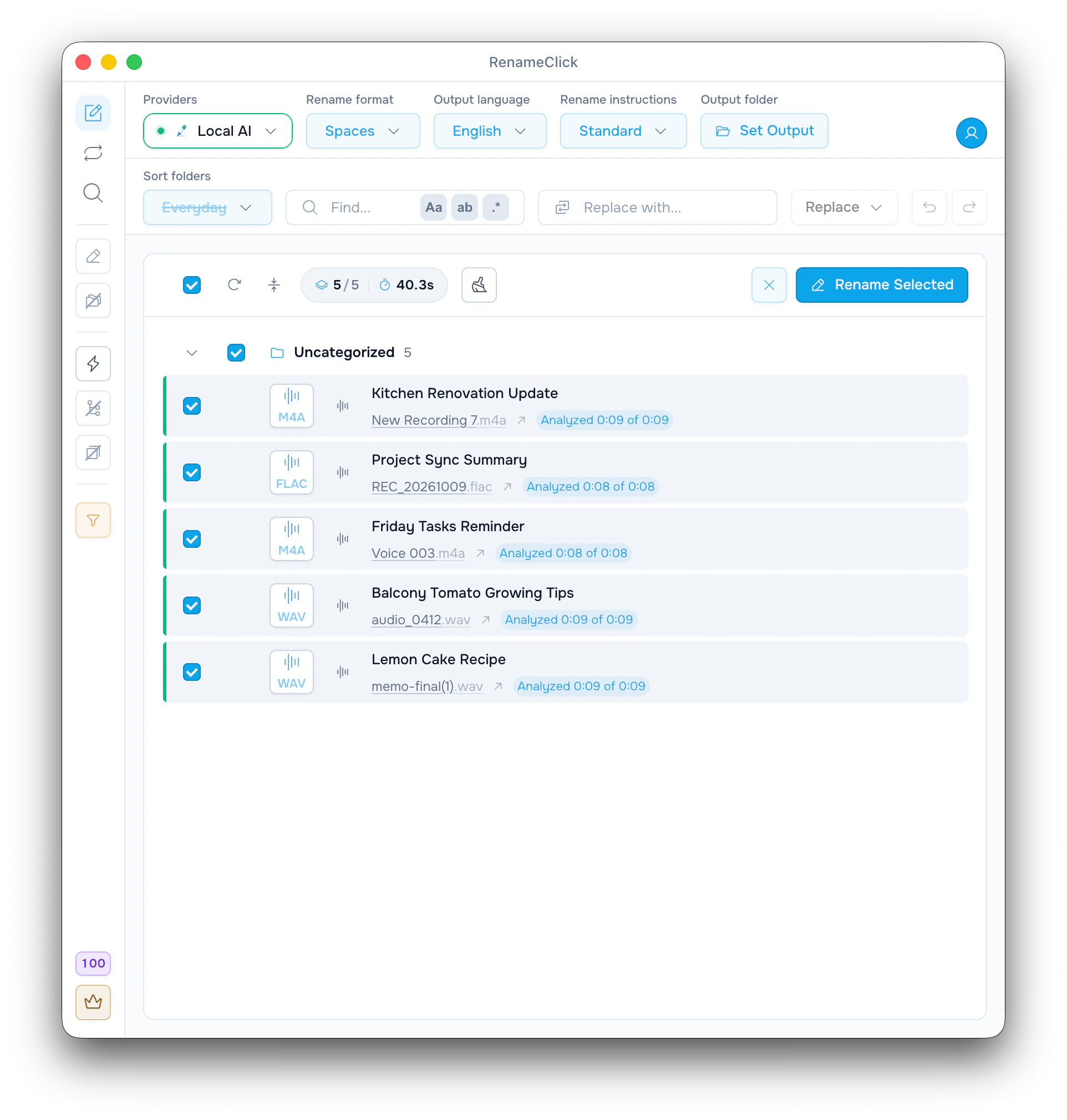
RenameClick turns the speech in each recording into text on your computer, then suggests a name from what was said. Five short voice notes from the screenshot:
| Original | Suggested name | Analyzed |
|---|---|---|
| New Recording 7.m4a | Kitchen Renovation Update | 0:09 of 0:09 |
| REC_20261009.flac | Project Sync Summary | 0:08 of 0:08 |
| Voice 003.m4a | Friday Tasks Reminder | 0:08 of 0:08 |
| audio_0412.wav | Balcony Tomato Growing Tips | 0:09 of 0:09 |
| memo-final(1).wav | Lemon Cake Recipe | 0:09 of 0:09 |
Settings: Local AI, Spaces, English, Standard instructions, Sort off. These are the names from that run, not a promise for other recordings. Only the name changes; the audio and the extension stay as they are.
Install the two local capabilities
Audio Transcription turns speech into text, and a naming model writes the name from that text.
- Open AI & Models.
- Install Audio Transcription, and RenameClick Local AI (about 4 GB) for names made on your computer.
- Choose Local AI in the Providers menu.
- On the Rename screen, choose Audio or All files in the file-type filter.
- Drop MP3, WAV, FLAC, M4A or AAC recordings, or a folder with them.
- Check the names, tick the rows you want and click Rename Selected.
Without Audio Transcription, audio is disabled in the filter. With Audio Transcription alone, a cloud provider, LM Studio or Ollama can create the names.
Check a name before you rename
Analyzed 0:09 of 0:09 means the whole recording was transcribed. What the AI saw on a row shows the transcript the name came from.
Check names of people, places and products. Click a name to edit it, or Re-run the row for another suggestion. Rename Selected changes only the ticked rows, at one apply credit each, and Undo in the toolbar reverts it.
Choose how much of a long recording to analyze
Short recordings are transcribed in full. For longer ones, RenameClick samples the amount set in Analyze up to from across the whole file, not only the start. The setting is in AI & Models: 30 seconds, 1, 2, 5 (default) or 10 minutes.
With the default, a 45-minute meeting gets about 5 minutes analyzed, and its row shows it, for example Analyzed 5:00 of 45:00. A one-topic voice note needs little; a meeting that changes topics may need 10 minutes. If the name describes the small talk at the start, raise the limit and Re-run the file.
Sampling can still miss a short passage.
Add a date or write your own instructions
With Standard instructions, Spaces gives Kitchen Renovation Update and Slug Case gives kitchen-renovation-update. Your own Rename format can add the file date or audio tags:
$date{YYYY-MM-DD} $1
$audio{album}_$audio{track}_$1
With the first, a recording created on 9 October 2026 gets a name like 2026-10-09 Kitchen Renovation Update. The date is when the file was created, not a date said in the recording. Tags such as album are often empty in voice memos.
For full control, write your own instructions with New instructions… in the Rename instructions menu. Rename format and Output language are then disabled:
Write an English filename of 4 to 8 words describing the main spoken topic. Include a person or organization only if it is clearly named in the speech. Do not guess. Return the filename without its extension.See the Custom Instructions guide for how to write and try instructions.
What stays on your computer
Transcription always runs on your computer. With Local AI selected, the name is created there too. With a cloud naming provider, part of the transcript text goes to that provider, but not the audio.
See provider setup and data handling for the full reference.
If a recording gets no useful name
- Audio model required: click Install Audio Transcription on the row.
- No speech detected: the file holds silence, music or noise. RenameClick does not identify songs.
- Unsupported codec: convert the file to one of the supported formats.
- Unsupported language: the transcription model does not support the spoken language.
- The name is too general: raise Analyze up to, or use instructions that ask for the main topic.
See supported formats and processing limits for the full reference.