
On this page
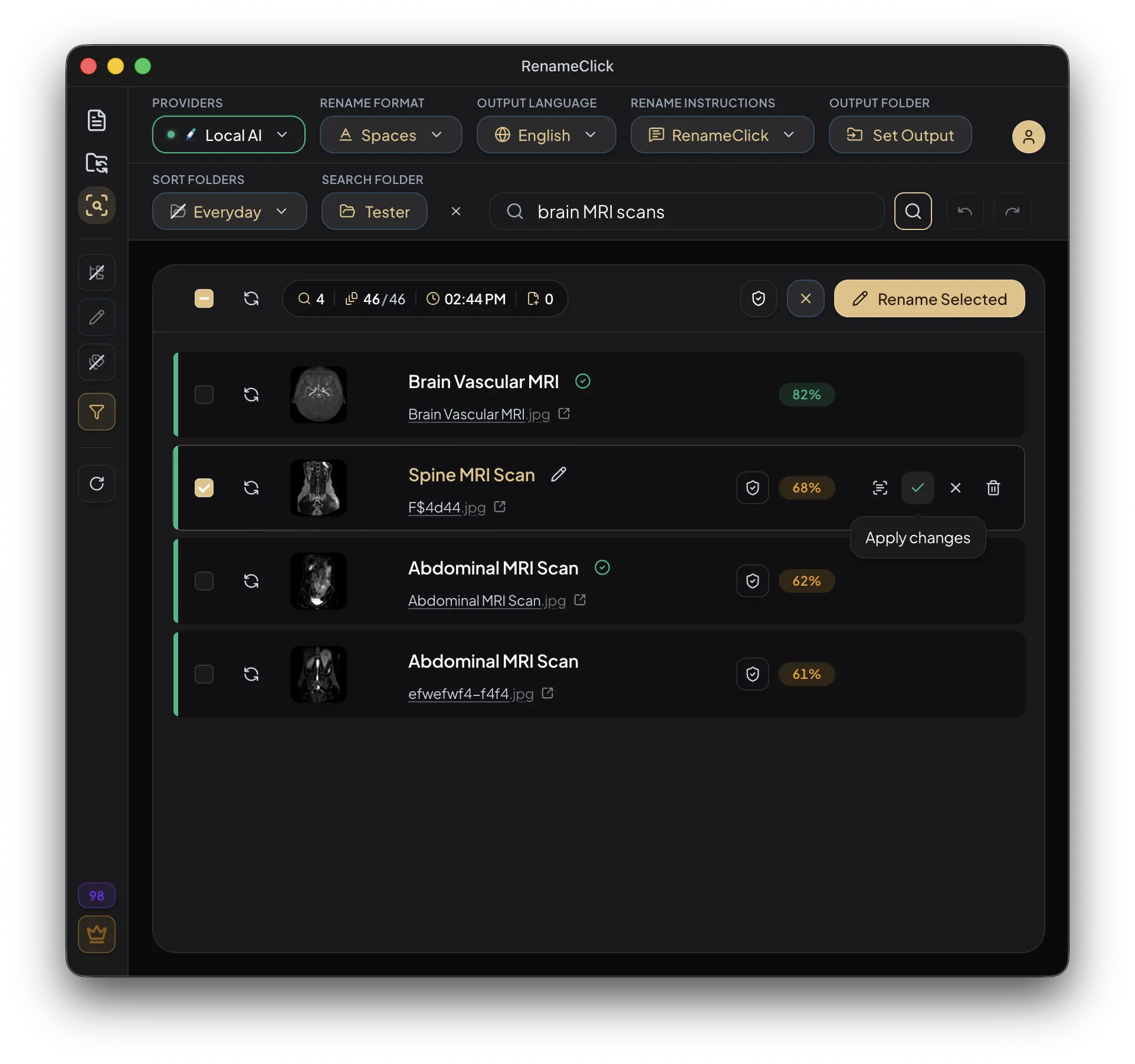
Describe the file you want to find
In RenameClick AI Search, you choose a folder, index it once and describe the document or image you need. Every search answers from the on-device index in a fraction of a second, so you can look for an invoice or a beach photo even when the filename says little.
Start with the main subject or purpose. A phrase such as passport scan is more specific than document. Add a vendor, topic, or other detail only when you expect it to appear in the file.
A match is a suggestion. Open the file to check dates, parties, signatures, or other details that matter; search does not verify a document’s legal status.
Index the folder and start the search
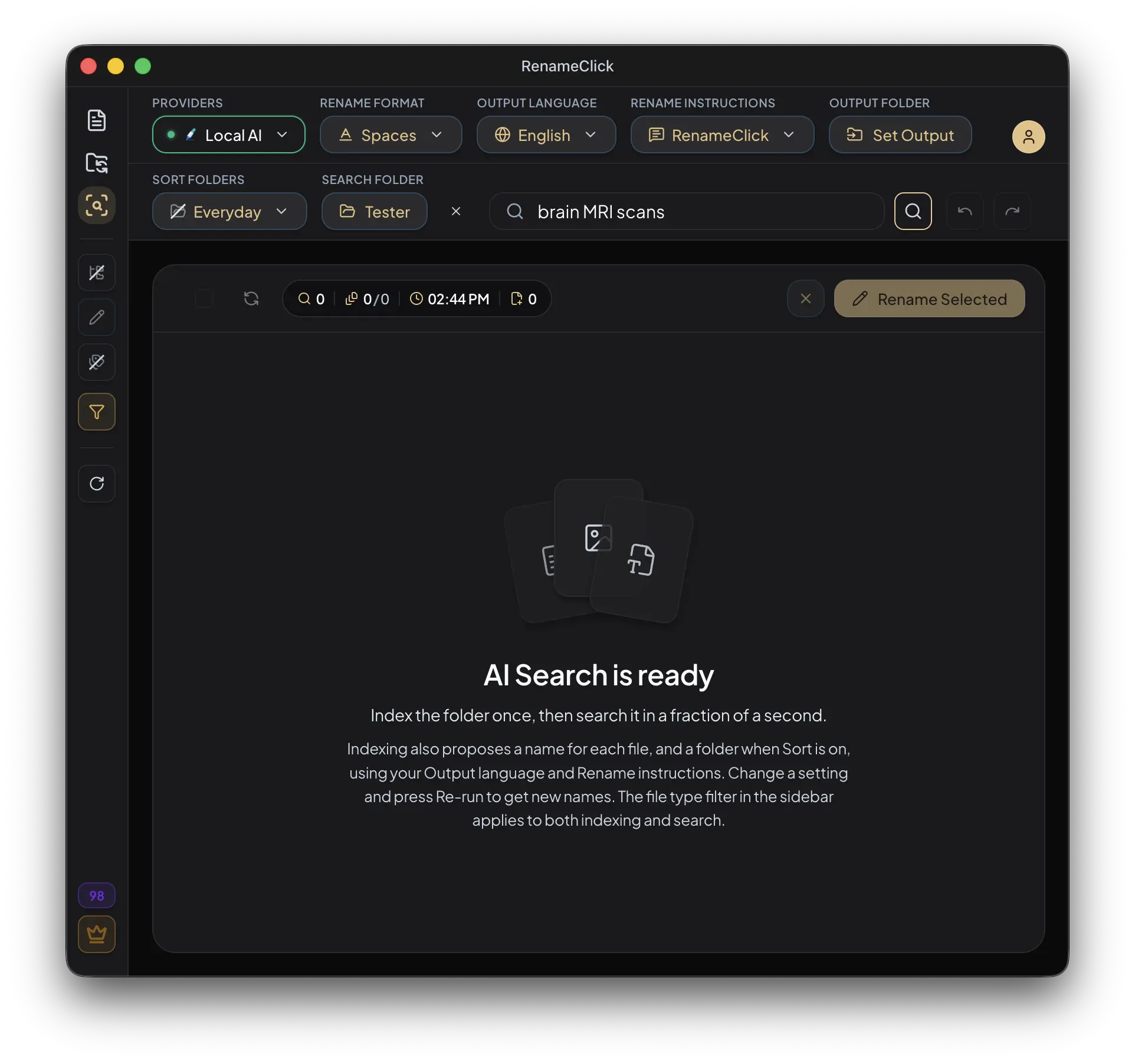
- Open AI Search and choose a folder. Enable Recursive if you want to include subfolders.
- Click Index folder. Indexing reads document text, scans and a Local AI description of every image, and proposes a name for each image along the way.
- Enter a search phrase and click Search or press Enter.
- Press Verify on a yellow match to confirm it with the full Local AI model.
- Come back later and click Update index when the folder changed; only new or changed files are read again.
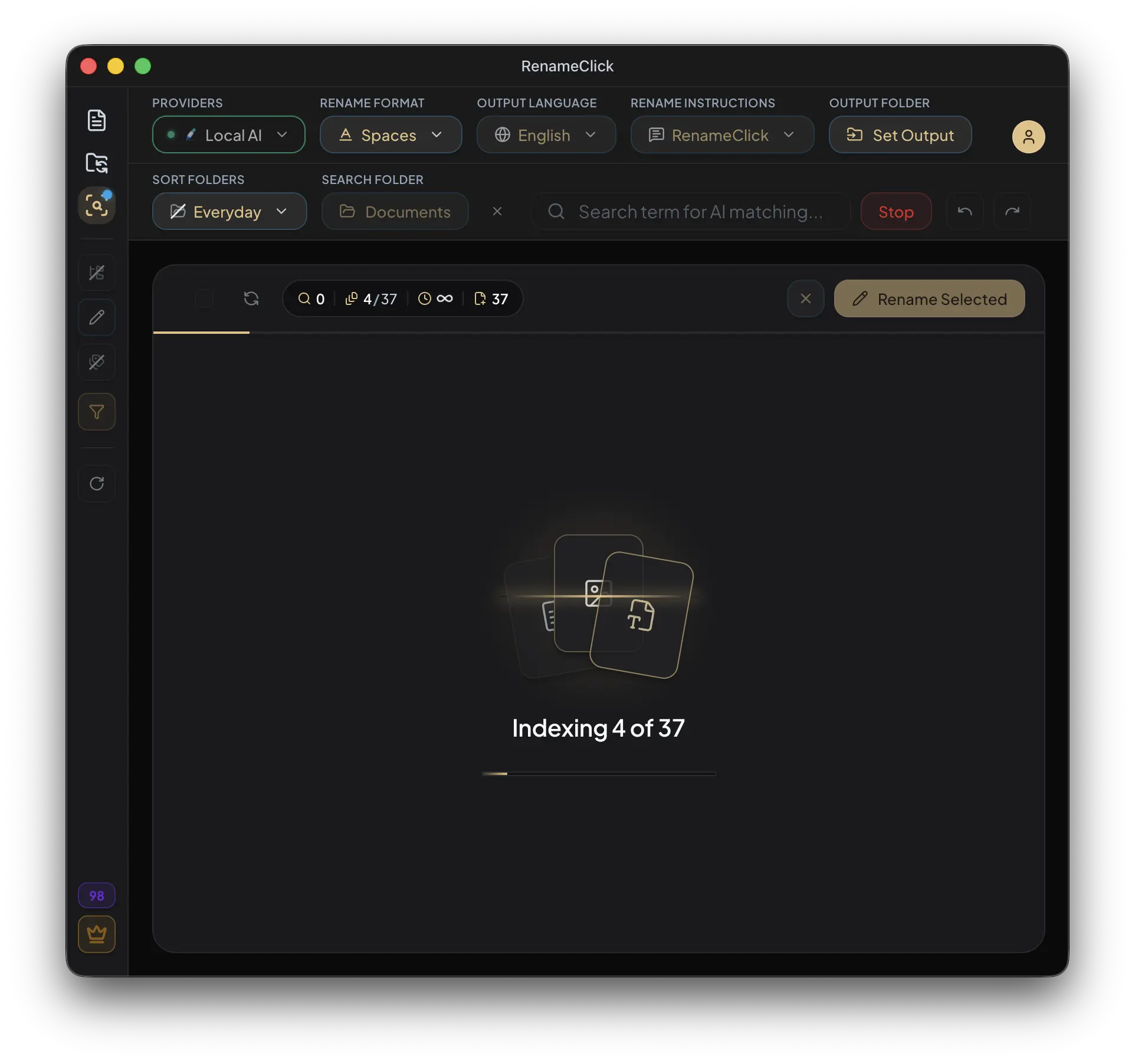
Choose the smallest folder likely to contain the file. The first index of a large archive takes a while, about a second per document and four per image; later searches in that folder are instant. You can stop indexing and search the part that is done.
Inspect the matches, then rename or move them
| Action | What happens |
|---|---|
| Verify | Confirms a likely match with the full Local AI model. |
| Apply (Rename Selected, Move to folder, Rename & Move) | Renames or moves the selected matches with the proposed names and the Rename settings. One apply credit per changed file; Undo reverts it. |
| Reveal in folder | Opens the file’s location in Finder or File Explorer. |
| Exclude | Removes a match from the current result list. |
| Move to Trash | Moves the actual file to the operating system Trash or Recycle Bin. |
Each match shows a proposed name under the file name, formatted with the same Rename format, output language, instructions and output folder you use on the Rename screen, plus the folder it would move to when sorting is on. Edit a proposal in place, select the rows and apply. Excluding a result is different from deleting the file.
The last query, folder, counters and matched results are saved across app restarts so you can return to them. Saved results do not mean a new search has run.
If the file does not appear
- Check that the folder is indexed and up to date, the Recursive setting and the selected folder.
- Check the file-type filter and supported formats.
- Try the main subject without details that may be absent from the analyzed content.
- For a scanned PDF, remember that analysis uses the first page. Long document text is trimmed.
- Look at errors separately from files that simply did not match.
Search favors the main subject of an image or purpose of a document. An incidental word in a footer may not be enough. Conversely, a plausible match can still be wrong.
See supported files and extraction limits for the full reference.
If Search is unavailable
Stop Rename processing and turn off Auto Flow Watch before indexing, searching or applying from AI Search. While indexing, naming or a search runs, the Rename screen and Auto Flow watch are locked in turn, and provider changes are unavailable. Stop the run before changing those settings.
The current Batch File Limit also applies. It defaults to 30,000 files and can be increased to 500,000 in Local AI Settings. This controls how many files may enter the index, not how quickly it finishes.
Local processing and what costs a credit
Indexing, searching, verifying and proposed names do not spend RenameClick apply credits. Renaming or moving a match from the results uses one credit per changed file, exactly like Rename. With Local selected and its model installed, the index, the descriptions and the names stay on your computer. Optional cloud providers require a network connection and may charge for API usage.
See the AI Search reference for the full reference.