Blogcategorize documents with ai

How to Automatically Categorize Documents with AI

Learn how to automatically categorize invoices, contracts, receipts, scans, and Downloads with local AI using a review-first workflow in RenameClick.

Published: Apr 21, 20269 min read

If you want to automatically categorize documents with AI, the real job is not just “sorting files.” It is turning a messy folder of invoices, contracts, receipts, scans, and screenshots into predictable category folders you can trust later.

RenameClick handles this with a review-first local AI workflow. You can analyze mixed document folders, see suggested categories before anything changes on disk, and only then move files into the right folders.

This article is the document-heavy version of that workflow. It is not about general image or media organization. It is about invoices, contracts, receipts, scans, and downloads folders where the filenames are useless but the document intent is still recoverable.

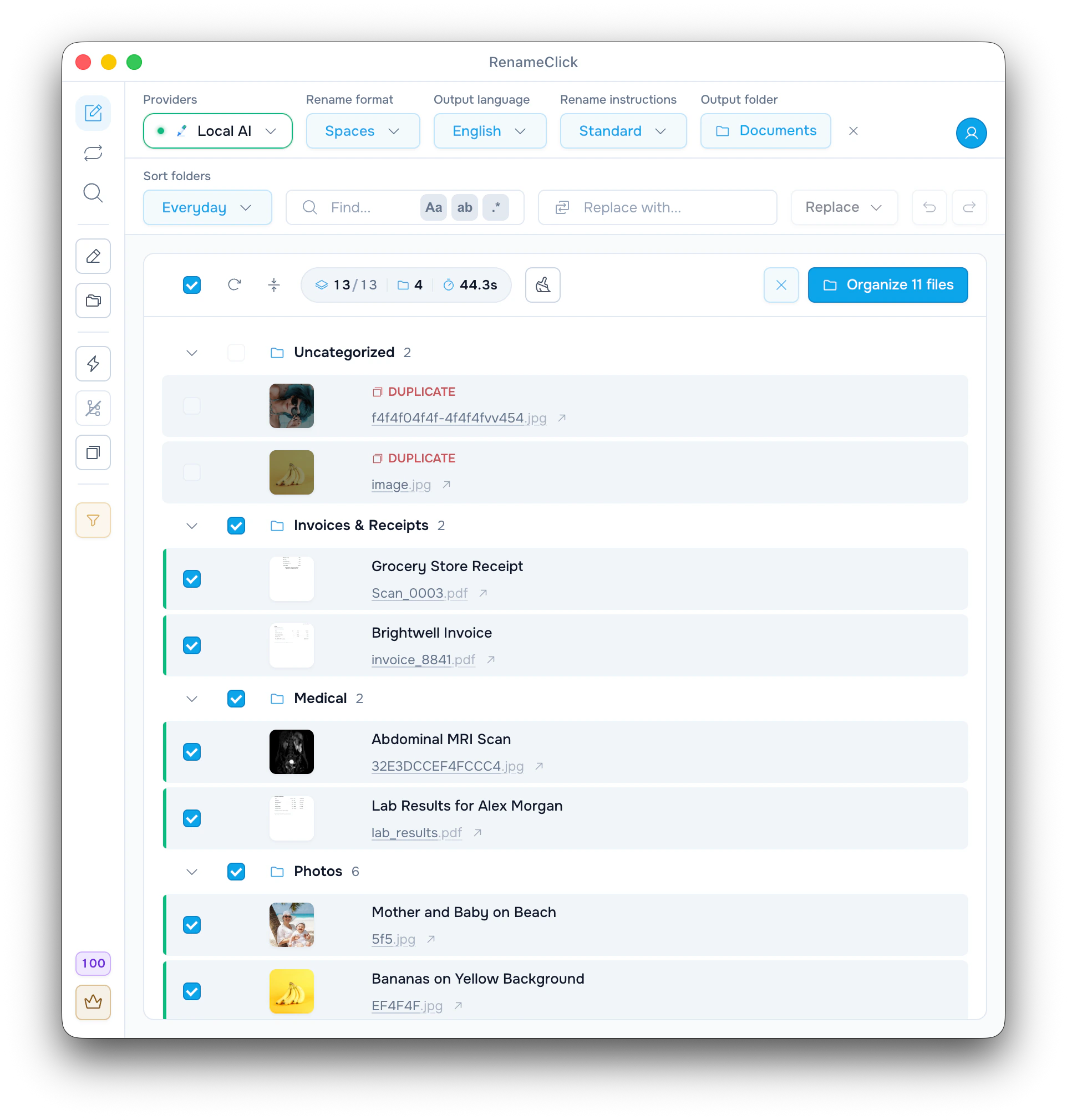
RenameClick automatically categorizing documents into folders
RenameClick groups invoices, contracts, scans, and screenshots into reviewable document categories.

Key takeaways

  • AI document categorization works best on mixed folders like Downloads, scans, and receipts.
  • Start with 6–8 clear categories instead of a huge overlapping taxonomy.
  • Use review-first mode before you automate renames or moves on disk.
  • Organizer is for controlled batches; sorter is for ongoing watch-folder automation.

What does “categorize documents with AI” mean?

AI document categorization means reading what is inside a file, not just looking at its extension or filename, and deciding which category folder it belongs in. A PDF might be an invoice, a contract, a report, or a scanned ID. The extension alone cannot tell you that.

That is why “sort by type” and “categorize by content” are different workflows. File type sorting is mechanical. AI categorization is semantic: it tries to answer what the document actually is.

Simple definition

Good AI categorization means you can drop mixed files into one folder and get back meaningful groups like Invoices, Contracts, Receipts, Reports, and Screenshots.

Which files benefit most from AI categorization?

AI categorization is most valuable in folders where filenames are weak and file types are mixed. The highest-value examples are:

  • Invoices that arrive as PDFs or scans with vendor-generated names.
  • Contracts and agreements mixed with proposals and reports.
  • Receipts exported from email, mobile apps, or photographed on a phone.
  • Scans from a home/office scanner where every file looks like scan_001.pdf.
  • Screenshots that belong in a separate folder from true documents.
  • Downloads folders that collect everything in one place.

These are exactly the folders where a manual cleanup day usually fails, because the folder has too many micro-decisions and not enough obvious naming structure.

If those files are mostly scanner output, continue with How to Rename Scanned PDFs with AI.

Review-first workflow in RenameClick

The safest way to categorize documents with AI is a review-first workflow:

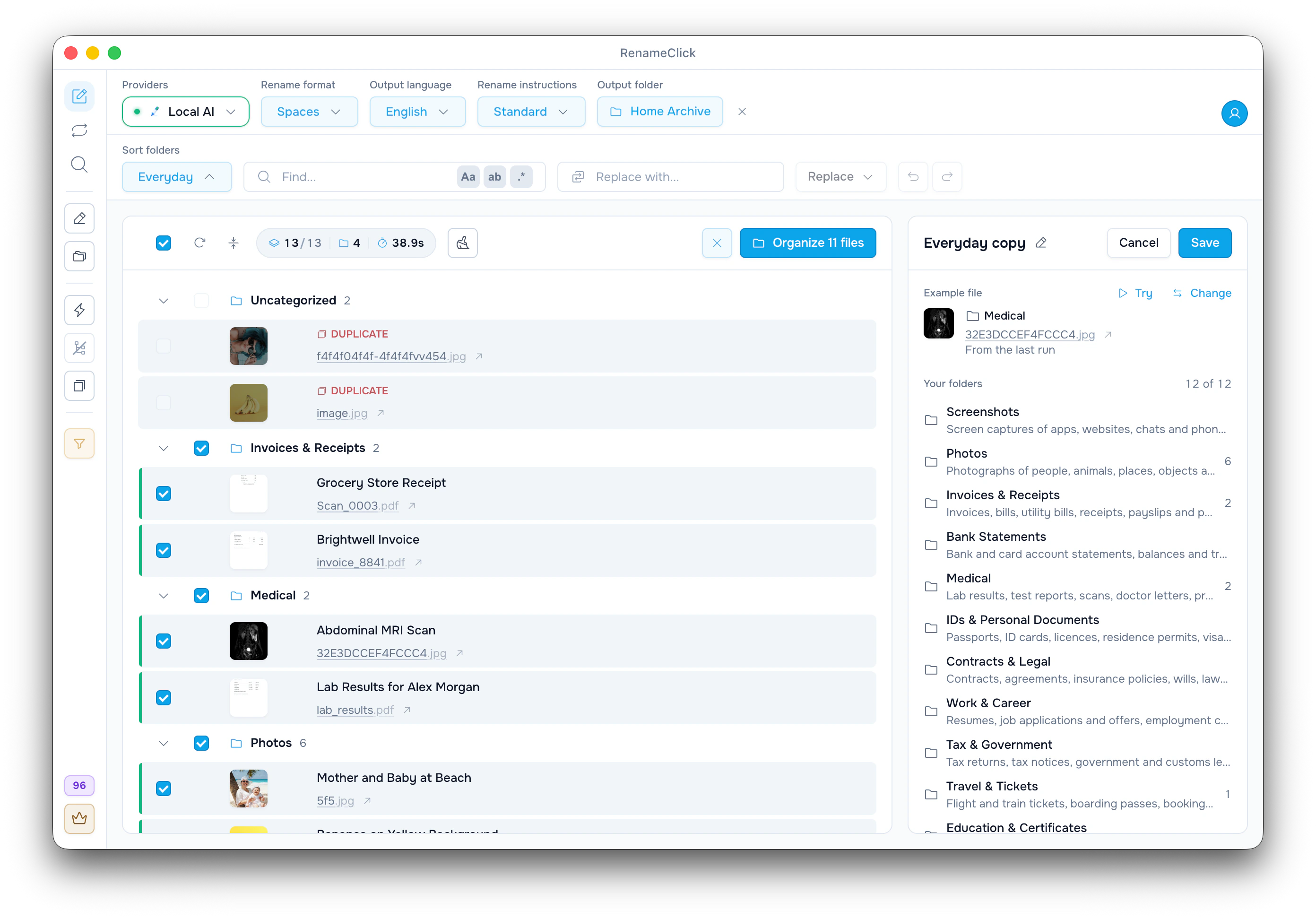
  1. Choose a document-oriented category preset.
  2. Drop a mixed folder such as Downloads, Scans, or Receipts.
  3. Let RenameClick analyze the files and suggest categories.
  4. Review grouped results and fix the obvious outliers.
  5. Move the approved categories into folders.

This is intentionally different from “full automation first.” The goal is to build confidence on 30–50 files before you trust the system with 3,000.

If you want the product walkthrough, start with the Rename Workspace documentation. Once the categories feel stable, move to automation with Auto Flow.

Organizer vs sorter: when to use each

Use the organizer flow when you are cleaning up an existing batch. Use the sorter flow when you want an ongoing system for new files.

  • Organizer: best for one-time cleanup, preset tuning, and grouped review.
  • Sorter: best for watch folders like Downloads, Scans, or Screenshots.
  • Search: best when you need to find documents by meaning before renaming or moving them.

If you are just starting, use AI File Organizer first, then graduate to AI File Sorter once your categories and folder structure stop changing every week.

Folder design and category pitfalls

Most categorization failures are taxonomy failures, not model failures. If categories overlap, the AI will hesitate and your review burden goes up.

Start with 6–8 categories that match how you actually search later. Good starting sets look like:

  • Invoices
  • Contracts
  • Receipts
  • Reports
  • Screenshots
  • Other

Avoid pairs like Bills vs Invoices, or Photos vs Images, until you have enough real mistakes to justify the split. Cleaner categories beat more categories.

Good rule of thumb

If you have to explain the difference between two folders to another person, the AI will probably struggle with the same boundary.

FAQ

How do I automatically categorize documents with AI?
Start with a mixed folder, choose a category preset, review the AI-suggested groups, and then move approved files into folders. RenameClick supports this as a review-first local workflow.
Can AI categorize invoices, contracts, receipts, and scans?
Yes. Those are some of the strongest use cases because the files usually contain clear text or visual signals that help the AI distinguish categories.
Should I use organizer or sorter first?
Use organizer first for controlled cleanup and category tuning. Use sorter after that if you want a watch-folder workflow that keeps classifying new files automatically.
Does RenameClick categorize documents offline?
Yes. RenameClick runs local AI by default, so you can categorize documents on-device without uploads.
Do I need to rename files too?
No. You can categorize only, rename only, or combine both. Many teams start with categorization first and add renaming after the folder structure is stable.

Want to try this workflow?

RenameClick runs offline by default and helps you rename and organize files by content — with a review-first flow.

RenameClick is developed by independent software engineers focused on building privacy-first productivity tools. Our mission is to bring AI capabilities to your desktop without compromising your data security.

Privacy First

With local AI, your files never leave your computer - no uploads, no cloud processing, no data collection. When using cloud providers (OpenAI, Google AI, or Alibaba Cloud), file content is sent directly to their servers.

Trusted by 3 500+ users

Join 3 500+ users who organize their files with AI-powered content-based naming.

Cross-Platform

Available for macOS (Apple Silicon and Intel) and Windows. One purchase works on all your devices.

© 2026 RenameClick. All rights reserved.