AI Search
Index a folder on your device, search it by content in a fraction of a second, then rename and move the matches with the same settings and credits as Rename.
Updated Applies to RenameClick 2.18.0
Index, Then Search
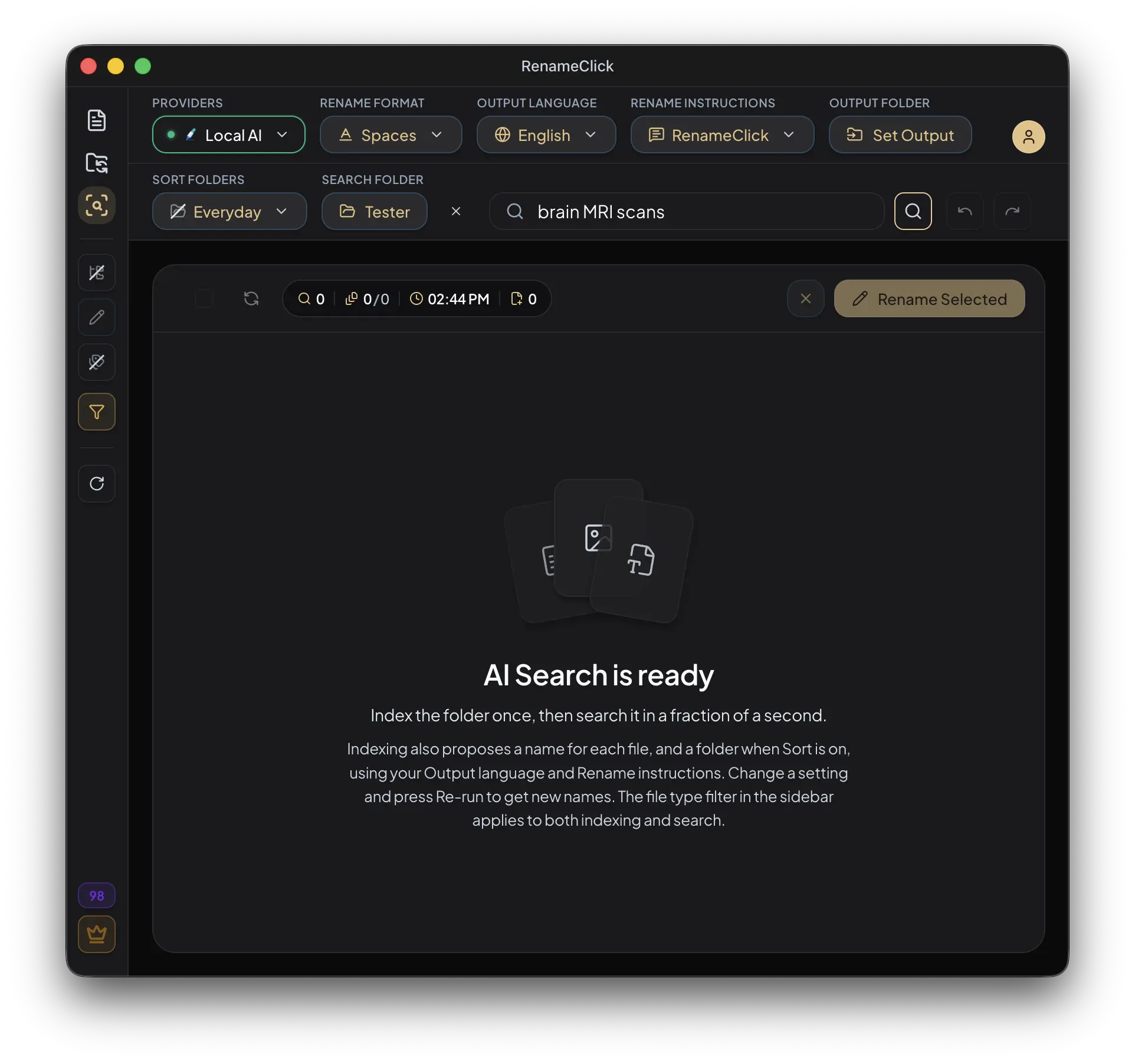
- Open AI Search and choose the folder. Enable Recursive for subfolders and check the file-type filter in the sidebar; it applies to indexing and to search alike.
- Click Index folder. The status line shows the progress and the folder stays usable in other apps.
- Enter the document purpose or image subject you remember and click Search, or press Enter.
- Inspect the matches. Press Verify on a yellow match to confirm it with the full Local AI model.
- Select the matches you want to rename or move and apply them, or reveal, exclude or trash them.
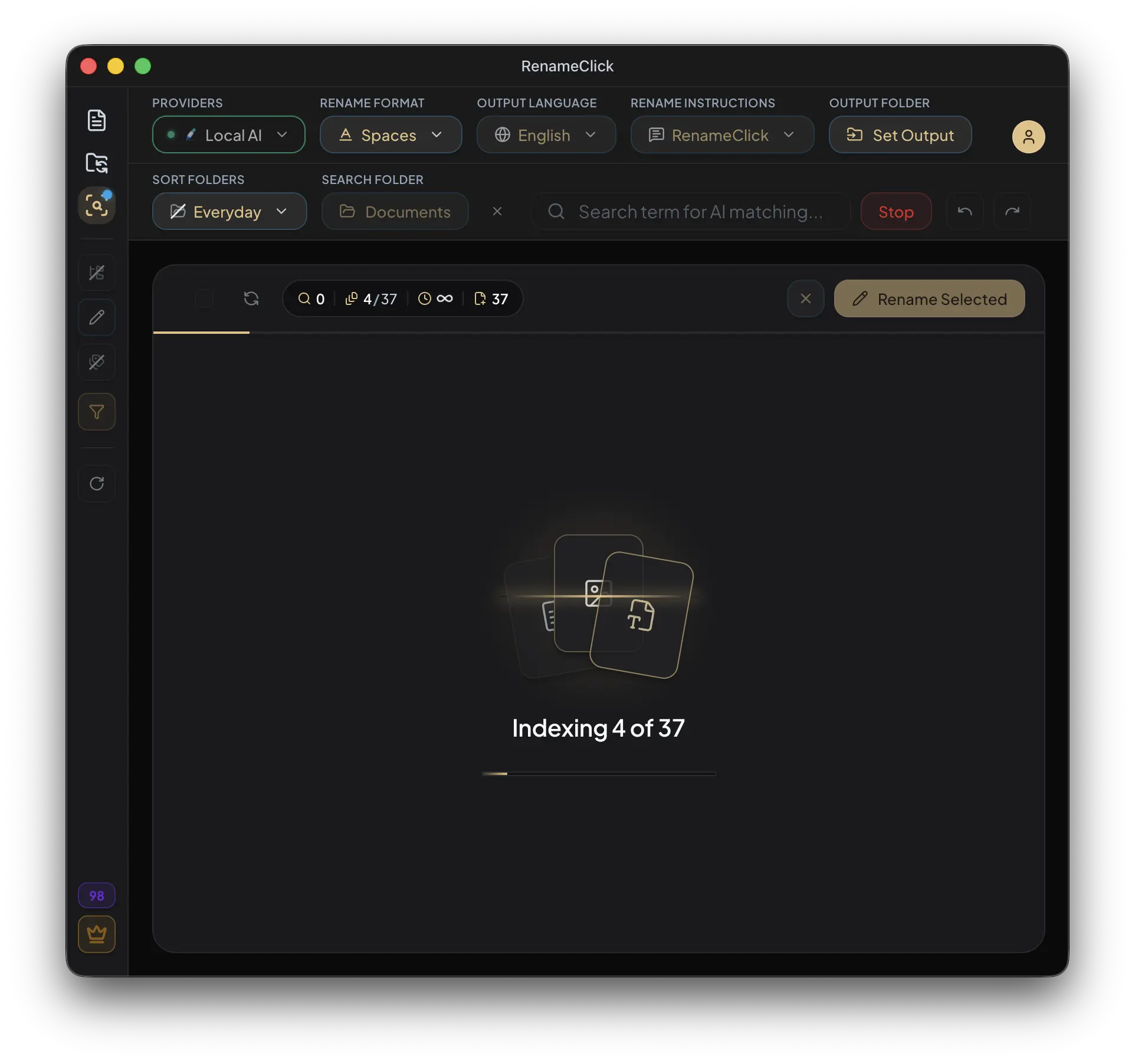
Indexing reads each supported file once: the text of documents and scans, and a one-sentence description of every image written by Local AI. Along the way Local AI also proposes a name and, when sorting is on, a folder for each image. Everything stays on this device. Later runs read only new or changed files; the toolbar shows Update index (N) when the folder changed since the last visit, and files removed from the folder leave the index. A file you renamed in Finder is relinked, not read again. Searches also match the name Local AI proposed for a file. The Reindex button in the sidebar reads the whole folder again from scratch, for example after switching the Local AI model. About 1 second per document and 4 seconds per image on a typical laptop.
Searching a changed folder is allowed. It answers from the indexed part and the status line says how many files are new or changed. A folder that was never indexed cannot be searched until the first run finishes. Without Instant Search installed, Local AI reads every file on each search instead, as before.
Reading a Result
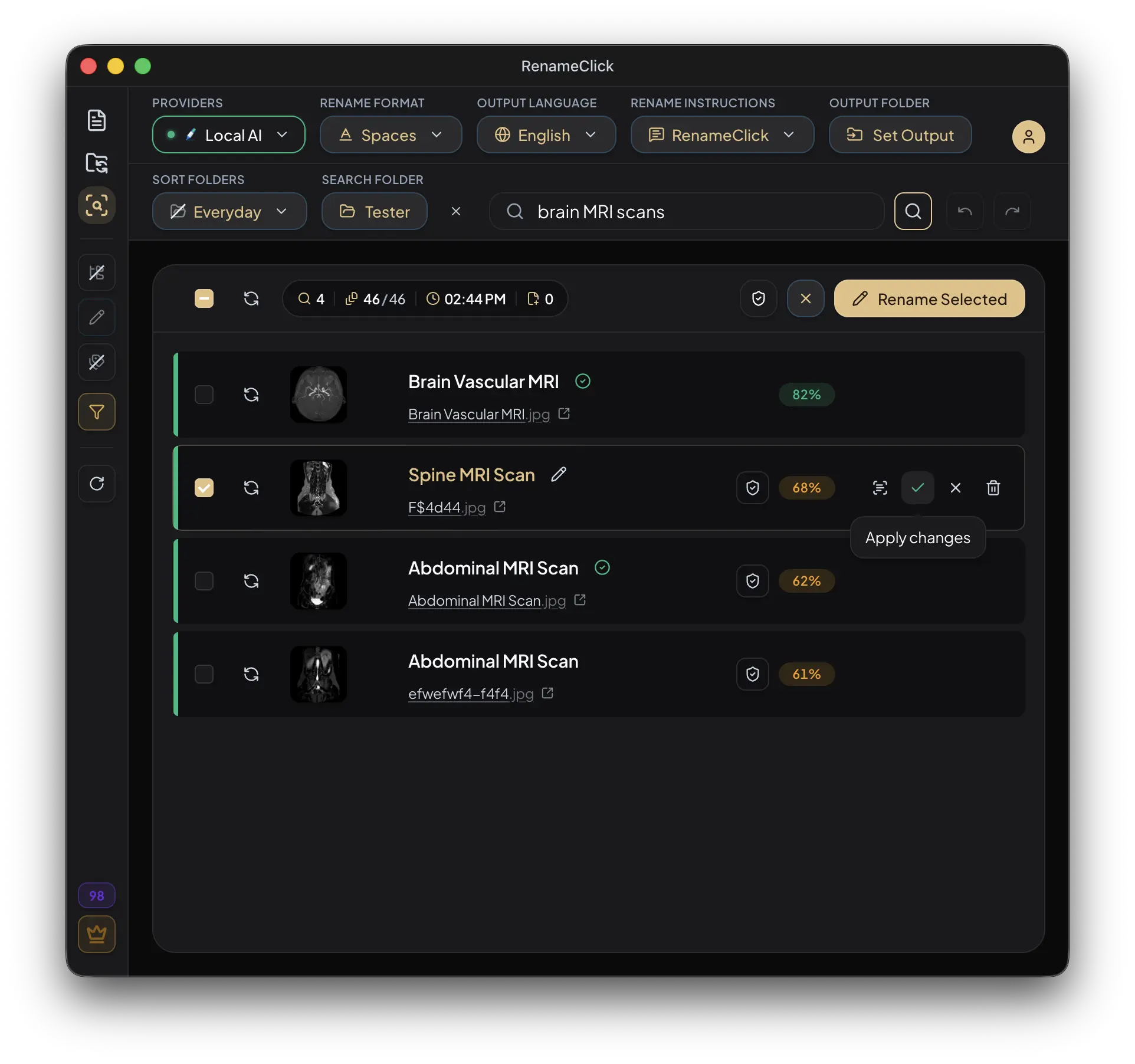
A result row is the Rename row: the proposed name on top, the current file name under it, underlined, with a link icon that opens the file's folder. Two things are added for search.
| Element | Meaning |
|---|---|
| Green badge | Strong match from the index |
| Yellow badge and the shield button (Verify) | Likely match; Verify reads the file with the full Local AI model and confirms the match or removes it |
| Proposed name | The name Local AI suggests, formatted with the current Rename settings |
| Re-run | Asks Local AI for a different name, as on the Rename screen |
Proposed names come from the index for images and are generated after the search for documents, one file at a time; the status line shows Naming x of y while this runs. A proposal is kept in the index while your naming settings stay the same, so the next search in the same folder shows it at once. Change the Rename format, output language, instructions or sorting preset and the rows are named again. Use the pencil to edit a proposed name in place. The What the AI saw icon opens the text or image that was sent to the model. A row whose naming failed shows the error and can be re-run.
The last query, folder, counters and result list are saved across restarts. Reopening saved results does not run a fresh search.
Rename and Move from Search
The header shows the same controls as the Rename screen: Rename format, Output language, Rename instructions and Output folder; Sort folders sits in the toolbar next to the search folder, and the Rename and Sort toggles are in the sidebar, as on Rename. A change on either screen applies to both, and indexing already proposes a folder for each image when Sort is on. Select rows with the checkboxes, or use the checkbox in the results bar to select all, then click the apply button. Its label follows the Rename and Sort toggles: Rename Selected, Move to folder or Rename & Move.
| Setting | Where a moved file goes |
|---|---|
| Output folder set, sorting on | Into the category subfolder of the Output folder |
| Output folder set, sorting off | Into the Output folder |
| No output folder, sorting on | Into a category subfolder next to the file |
| No output folder, sorting off | Stays in its folder; only the name changes |
An applied row shows the new name and Renamed from the old one. Undo and Redo in the toolbar revert or repeat the last apply actions of the session, up to 10. The search index follows renamed and moved files, so nothing is read again.
| Row action | Effect |
|---|---|
| Verify | Confirms a yellow match with the full Local AI model |
| Apply | Renames or moves this one file with the current settings, one apply credit |
| Exclude | Removes the entry from the current result list |
| Move to Trash | Moves the actual file to the system Trash or Recycle Bin |
| File name link | Opens the location in Finder or File Explorer |
The results bar shows four numbers: matches, indexed files out of the supported files in the folder, when the index was last updated, and how many files are new or changed and not indexed yet. Verify all, Clear and the apply button sit on its right, and the toolbar above keeps the folder, the query, Undo and Redo, Index or Update index, and the search button.
How Matching Works
The main subject of an image and the purpose of a document influence matching. Incidental words in boilerplate or a background detail may not be enough. A model can still miss a relevant file or return an unsuitable match, so every match still needs inspection before you apply it.
Scanned PDFs use their first page; long document text is trimmed. A query about information outside that content may not find the file. Check supported files and extraction limits, then refine the query or choose a narrower folder.
If Search or Indexing Is Unavailable
Stop Rename processing and stop watching in all Auto Flow rules before indexing, searching or applying from search. While indexing, naming or searching runs, the Rename screen and Auto Flow watch are locked in turn, and the provider cannot be changed. Stop the run before changing those settings.
A folder over the Batch File Limit cannot start a scan. Choose a smaller folder or raise the limit in Local AI Settings, from the 30,000 default up to 500,000. Increasing the limit admits more files; it does not make them process faster.
Cost and Processing Location
Indexing, searching, verifying and proposed names use no RenameClick apply credits. Applying from search follows the Rename rules: one credit per successfully changed file, renaming and moving together still one credit, failed applies and undo free. With Local AI selected and its model installed, everything runs on the device. Optional cloud API usage for naming may have a separate cost. Provider settings and Credits and plans.