Organize & Sort Files into Folders with AI
How to sort and organize files with AI categories, metadata folder presets, and Match folders in RenameClick.
Updated Applies to RenameClick 2.15.2
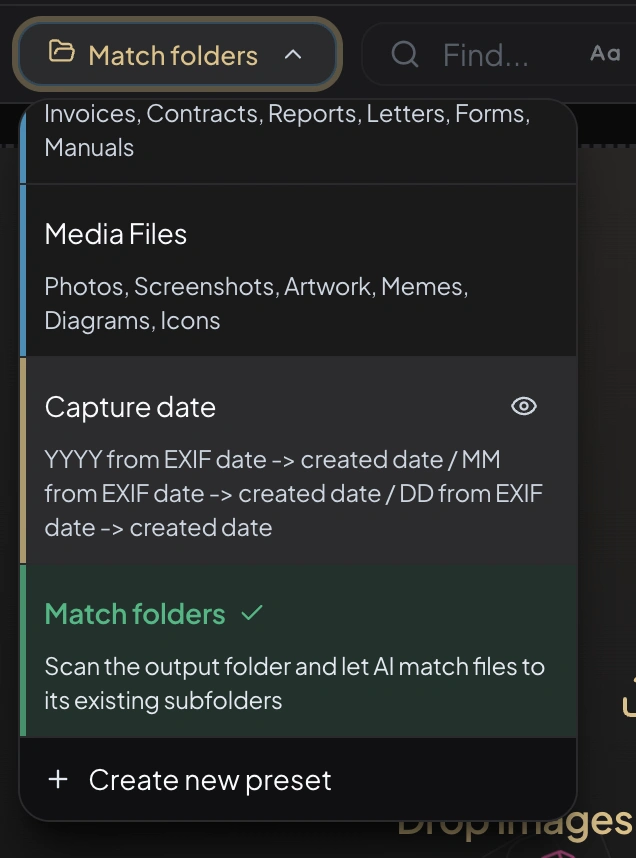
RenameClick can organize files into folders in three ways: AI categories, metadata folder presets, and Match folders. Use AI categories when the folder should come from file content, metadata folders when the folder path should come from dates or EXIF fields, and Match folders when you already have a destination folder structure and want new files routed into it.
Sorting Preset Types
| Type | Best for | How folders are chosen |
|---|---|---|
| AI Categories | Documents, downloads, screenshots, mixed file batches | AI reads the file content and chooses from a preset list |
| Metadata Folders | Photos, camera imports, archives, date/location structures | RenameClick builds a folder path from date, EXIF, and text levels |
| Match Folders | Continuing work inside existing client, project, or archive folders | RenameClick scans the selected output folder and AI matches files to its existing subfolders |
Select a sorting preset when Categorize is enabled. Use Categorize only to keep filenames or Rename + Categorize to change both names and locations.
AI Categories
AI categories are content-based. The AI reads each file and assigns it to the most appropriate category from the selected preset.
Built-in AI Presets
| Preset | Categories |
|---|---|
| Documents | Invoices, Contracts, Reports, Letters, Forms, Manuals |
| Media Files | Photos, Screenshots, Artwork, Memes, Diagrams, Icons |
Built-in presets are view-only. You can inspect them, but you cannot edit their category list.
Custom AI Presets
Create custom AI category presets when your folder names are specific to your workflow.
- Open the Categorization selector in the workspace header
- Choose Create New
- Select AI categories
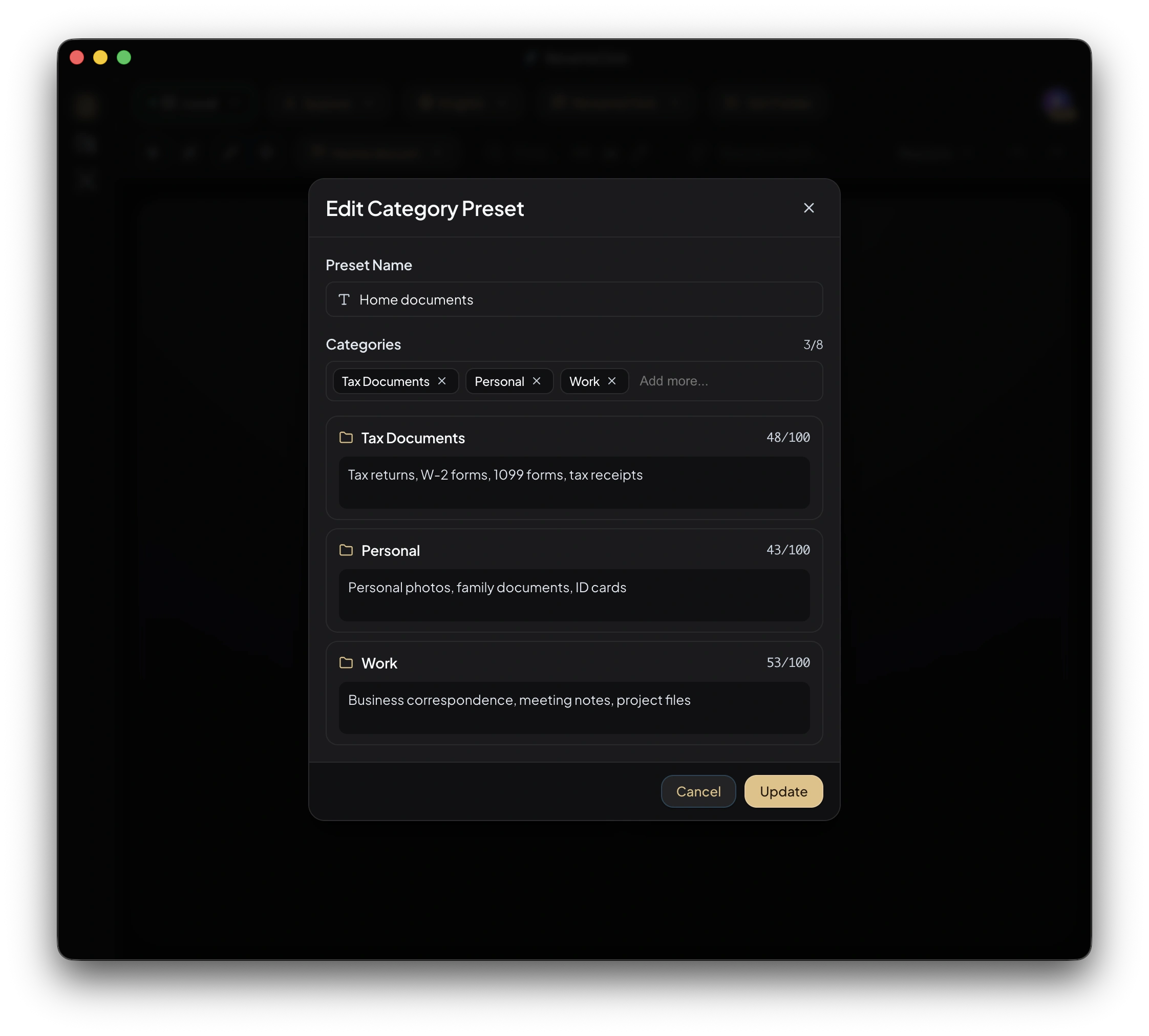
- Add category names and optional descriptions
- Save the preset for reuse
Descriptions explain the intended difference between categories. These are instruction examples, not validated classification results:
| Category | Description |
|---|---|
| Client Invoices | "Invoices and payment requests sent to clients" |
| Vendor Receipts | "Receipts and purchase confirmations from suppliers" |
| Contracts | "Agreements between named parties that set out terms or obligations" |
Metadata Folder Presets
Metadata folders build the destination path from structured file metadata instead of asking AI to choose a content category. This is useful for photos, camera imports, and repeatable archive structures.
Folder Builder Levels
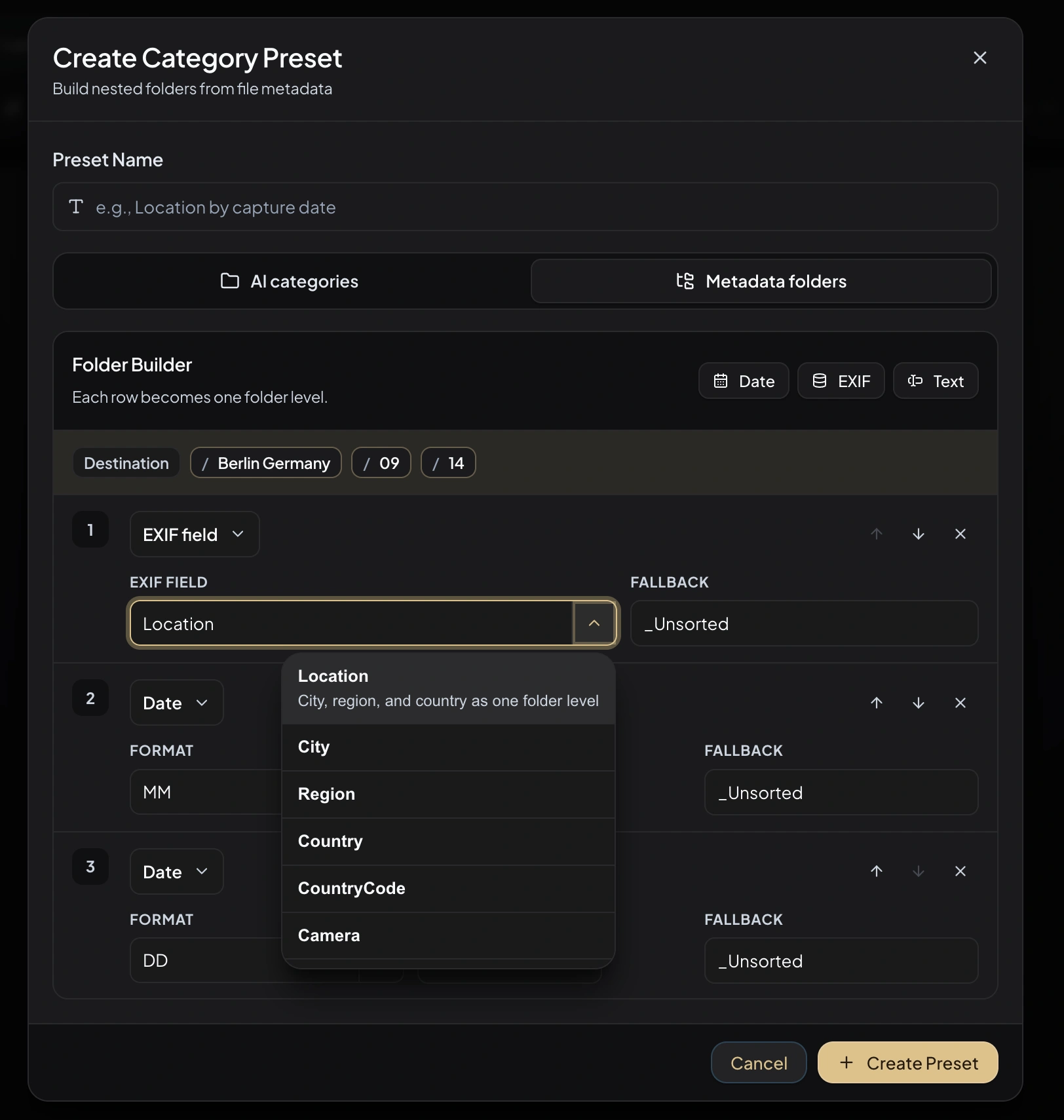
Each row in the Folder Builder becomes one folder level. Arrange the levels in the order you want to browse.
| Level type | Examples | Use when |
|---|---|---|
| Date | YYYY, MM, DD, YYYY-MM-DD | You want chronological folders |
| EXIF | Location, City, Country, Camera, LensModel, any raw EXIF field | You want folders based on photo metadata |
| Text | Archive, Client Photos, Raw Imports | You want a fixed folder name in the path |
Illustrative path structures, assuming the corresponding metadata is present:
| Preset | Resulting folder path |
|---|---|
| Capture date | 2026 / 04 / 30 |
| Location by capture date | Berlin Germany / 2026 / 04 / 30 |
| Camera archive | Archive / Canon / EOS R5 / 2026 |
| Client photo import | Client Photos / Berlin Germany / 2026-04-30 |
Date Sources and Fallbacks
Date levels can use:
- EXIF -> Created: photo capture date first, file created date as fallback
- Created: file creation date
- Modified: file modification date
These are metadata dates, not issue or event dates extracted from document text. A copied file’s creation date can differ from when a photo was taken.
Metadata fields can also have fallback folder names. If a photo has no GPS location, for example, the location level can fall back to _Unsorted instead of producing an empty path.
Match Folders
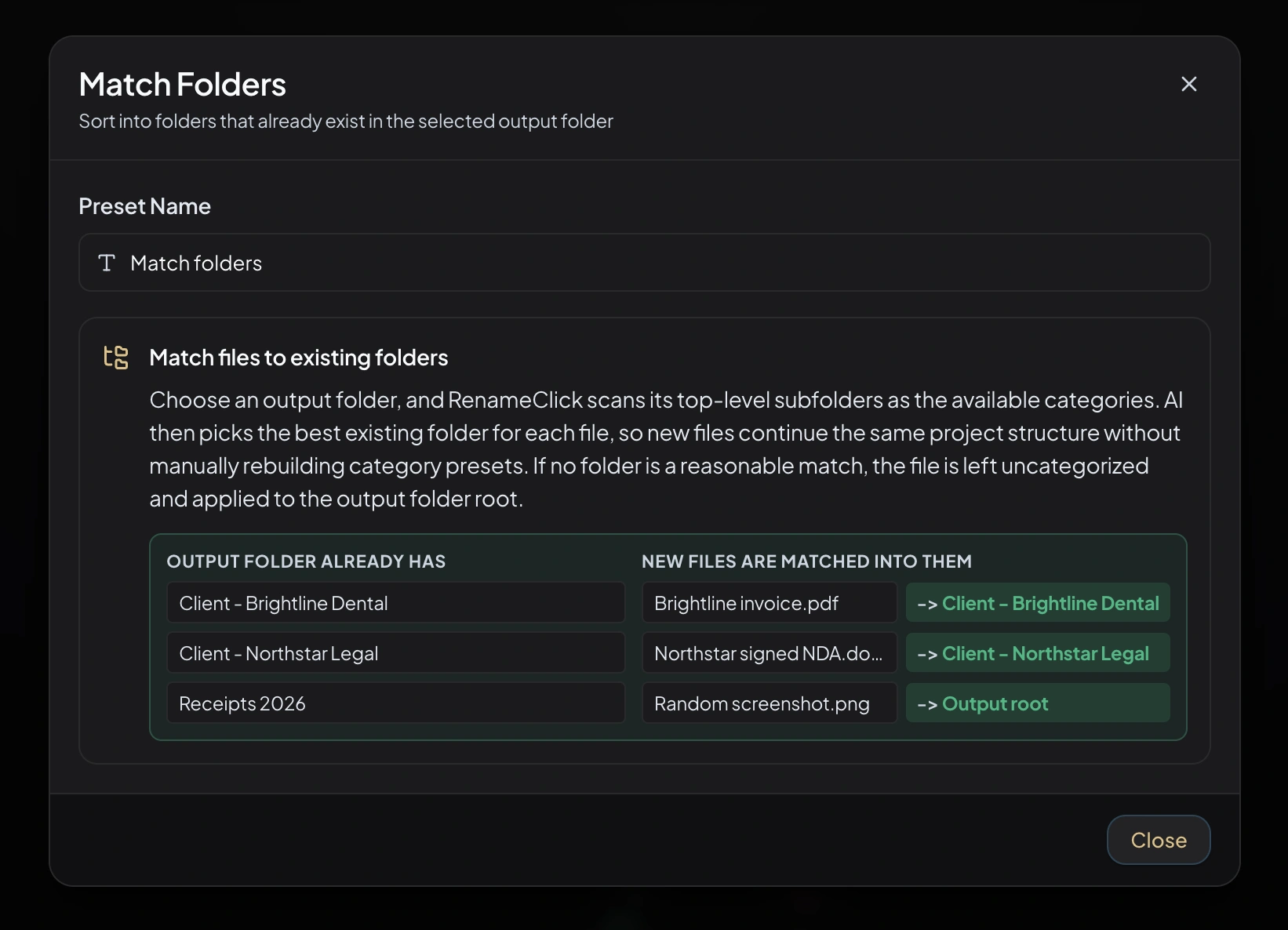
Match folders is for sorting new files into folders that already exist in the selected output folder. RenameClick scans the output folder's top-level subfolders, treats those folder names as categories, and asks AI to pick the best existing folder for each file.
Folder Limit and Unmatched Files
Match Folders considers up to 50 existing top-level subfolders. If the destination has more, choose a narrower folder rather than assuming all names were included. It does not recursively learn an archive or create new categories.
With a separate destination, an unmatched file stays uncategorized and is applied to the output root. Deselect it if it should remain at the source.
Auto Flow also permits the same source and destination, for Match Folders and for any other renaming or sorting rule. Recursive is disabled; files directly in the source are renamed there or move into subfolders, and files the rule already handled are not processed again. An unmatched Match Folders file remains in place and appears as an error. This avoids repeatedly processing an unresolved file in that configuration.
Apply Modes with Sorting
| Mode | What happens |
|---|---|
| Rename & Move | Files are renamed and moved into the folder chosen by the selected sorting preset |
| Move to folder | Files keep their original name and are moved into the chosen folder |
| Rename only | Files are renamed in place; no folder organization is applied |
Unmatched or Missing Values
Different preset types handle "no confident folder" differently:
| Preset type | When no folder can be resolved |
|---|---|
| AI Categories | AI returns null; the file stays uncategorized |
| Metadata Folders | The configured fallback folder is used for the missing level |
| Match Folders | Separate destination: output root. Same-folder Auto Flow: stays in place with an error. |
Auto Flow Integration
Each Auto Flow row can use its own sorting preset:
- Row 1: Downloads -> AI categories for invoices, contracts, and receipts
- Row 2: Camera imports -> metadata folders by location, year, month, day
- Row 3: Client uploads -> Match folders against existing client subfolders
Configure row-level sorting in the row settings panel. This lets each watched folder keep its own naming, categorization, metadata, and output behavior.
Choose a Preset
- Use AI categories when folder names depend on file meaning.
- Use Metadata folders when folder names should be deterministic and repeatable.
- Use Match folders when the output folder already contains the structure you want to continue.
- Keep AI categories distinct. Avoid overlapping names like
BillsandInvoicesunless you add clear descriptions. - Test new presets on a small batch before using Auto Apply in Auto Flow.
See Also
- AI File Organizer for Mac and Windows — organize an existing mixed folder with proposed folders you can inspect.
- AI File Sorter with Auto Flow — sort new files from watched folders with Auto Flow.
- AI Document Organizer for PDFs and Scans — categorize invoices, receipts, contracts, reports, and scans by content.