System & Settings
Settings Portability
Export presets and supported preferences to a .rclick file, then reconnect device-specific paths and credentials after import.
Updated Applies to RenameClick 2.16.0
Export Settings
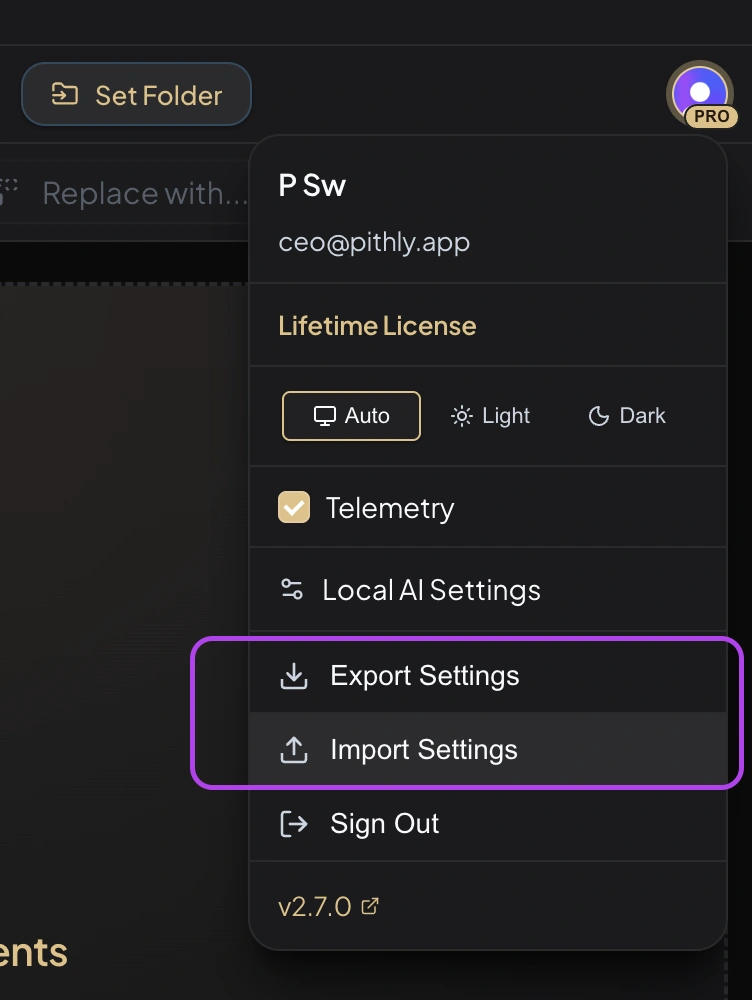
Open Settings, choose Export Settings, and save the .rclick file. Use an export to retain your current configuration or transfer reusable presets to another installation.
Import Settings
- Stop watching in all Auto Flow rules.
- Export the current settings first if you need to retain them.
- Choose Import Settings and select the
.rclickfile. - The included settings are replaced and the app reloads.
Import is not a merge of presets. Check the imported configuration before using it on files.
What Transfers
| Included | What to check on another computer |
|---|---|
| Format presets | Patterns and original-name assumptions |
| Custom instructions | Fields and language expected by each prompt |
| Category presets | Category names, descriptions, metadata levels, and fallbacks |
| Provider preferences | The provider and model are available |
| Auto Flow configuration | Sources and destinations point to the intended folders |
| Theme preference | Your preferred appearance |
What Does Not Transfer
- API keys and device-specific secrets: configure these separately.
- License activation: activate or restore the purchase for that installation.
- Model files: install the required local capabilities.
- Processing results and file-operation history: an export is not a backup of your files or undo history.
Reconnect Local Paths
A saved path may not exist on another computer or operating system. Re-select sources and destinations, check Recursive and filters, and verify any LM Studio or Ollama endpoint. Start Auto Flow with Auto Apply off while checking imported rules.