MCP Server for Renaming and Organizing Files
Use Claude, Codex or Cursor to organize your files with RenameClick: the agent sets up names, folders and Auto Flow rules, and you apply the changes.
Updated Applies to RenameClick 4.0.1
The MCP server lets an AI agent you already use set up RenameClick for you. Tell the agent in your own words how your files should be named and sorted: it creates the formats, rename instructions, folder sets and Auto Flow rules, and asks when something is unclear. You can also ask it what RenameClick can do.
Agents connect through MCP (Model Context Protocol), a standard way for AI apps to use another app's tools. The MCP server is available on every plan. It is a new feature, and how agents use it may still change.
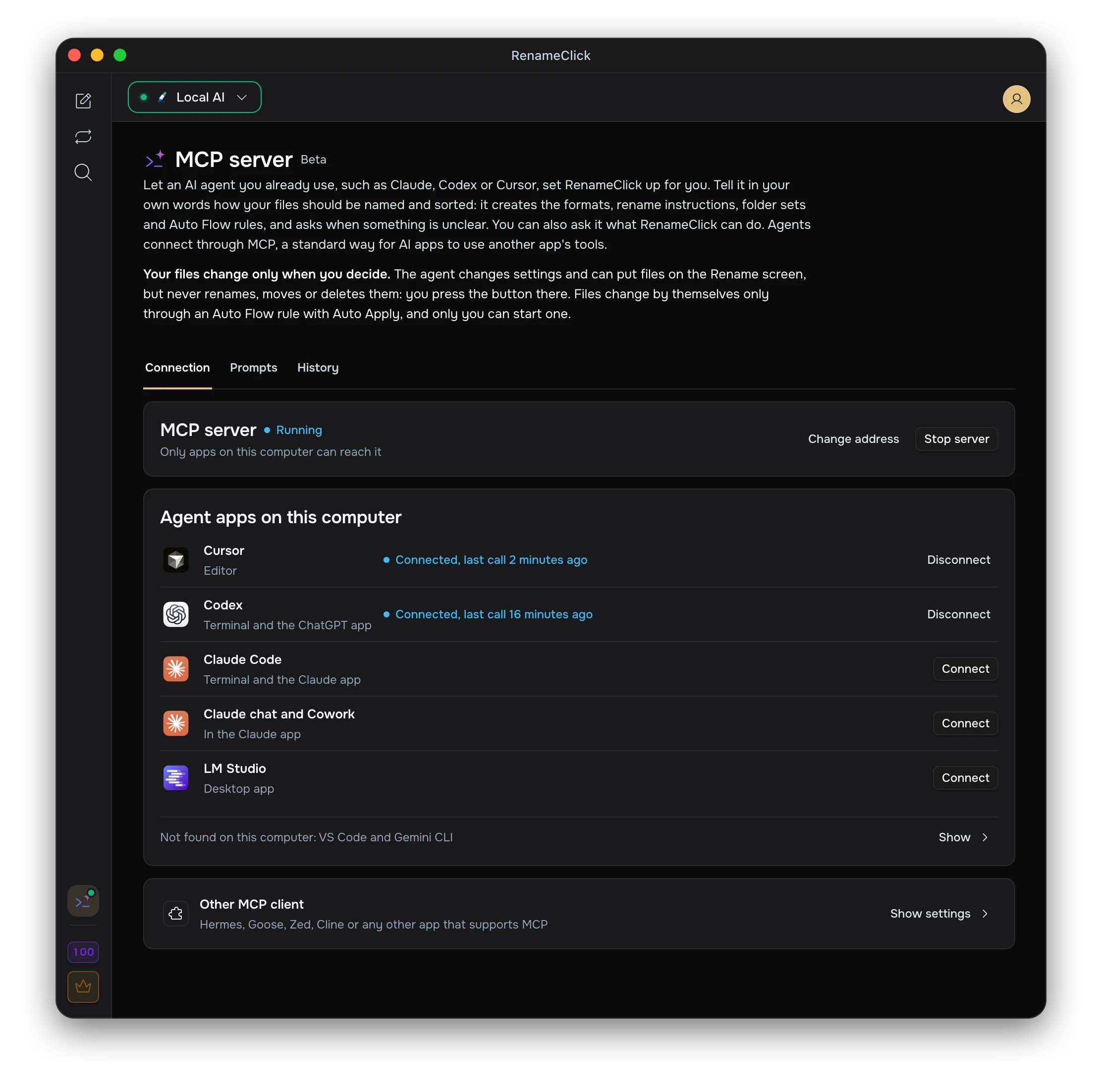
Your Files Change Only When You Decide
RenameClick gives agents no tool that renames, moves or deletes files. Through RenameClick they change settings and can put files on the Rename screen. Your agent app controls its own file commands, and asks you before it uses them as you set it up there.
- Files an agent sends wait on the Rename screen until you press its button, such as Rename Selected or Organize. The agent tells you the label your screen shows.
- Results of an Auto Flow rule wait on the Auto Flow screen until you apply them.
- Only an Auto Flow rule with Auto Apply changes files by itself, and only you can start one.
What an Agent Can Do
| Area | What the agent can do |
|---|---|
| Status | Check whether the AI is ready, how many credits are left and what the Rename screen uses now |
| Formats | List, create, change and delete your own formats |
| Rename instructions | Create, change and delete instructions |
| Sort folders | Create folder sets with descriptions, Date and place levels, or Existing folders of a destination |
| Rename screen | Choose the format, instructions, folder set, output language and output folder, send files to the list and read the names it shows |
| Auto Flow | Create, change and delete rules, start and stop them, and read their results. A rule with Auto Apply is started only by you |
| AI Search | Search a folder by what files contain and read the results |
| AI provider | See the providers, choose a model and switch to a provider you already set up. API keys stay with you: enter them in RenameClick |
RenameClick names, sorts and finds files. It does not convert, edit or compress them, and it cannot tell who the people in a photo are.
Connect an Agent
- Open MCP server at the bottom of the sidebar. The Connection tab lists the agent apps found on this computer.
- Press Connect next to your agent. RenameClick shows what it will do before anything changes.
- Start a new session in the agent if the row says Added. After the agent's first call, the row says Connected.
RenameClick has to be running for the agent to reach it. It can stay in the menu bar (the system tray on Windows) with its window closed.
| Agent app | What Connect does |
|---|---|
| Claude Code, Codex, VS Code, Gemini CLI, OpenClaw, Devin Desktop (Windsurf) | RenameClick runs the agent's own command, shown in the dialog. One row covers the terminal and the desktop app when they share their settings |
| Cursor, LM Studio | The app opens with RenameClick filled in. Confirm there |
| Claude chat and Cowork | The Claude app opens its install window for the RenameClick extension. Confirm there, and remove it later in the Claude app under Settings, Extensions |
| Hermes, Goose, Zed, Cline and other MCP apps | Other MCP client shows the server address (streamable HTTP), the mcpServers settings for apps that take a JSON file, and npx -y mcp-remote <address> for apps that only start local commands |
Your agent app asks you before each RenameClick tool it uses, unless you trust the server in that app.
Example: Rename and Sort Downloads with Cursor
- In RenameClick, press Connect next to Cursor.
- Cursor opens with RenameClick filled in. Confirm there.
- In Cursor's agent chat, send what you need. For example:
The files appear on the Rename screen with proposed names and folders, and Cursor tells you which button to press. Check the list, then press Organize. Nothing moves before that. If a name is not what you want, tell the agent how it should look: it changes the instructions and sends the same files again.
Example: Organize Screenshots with Codex in the ChatGPT App
The Codex row covers Codex in a terminal and in the ChatGPT app, because they share their settings.
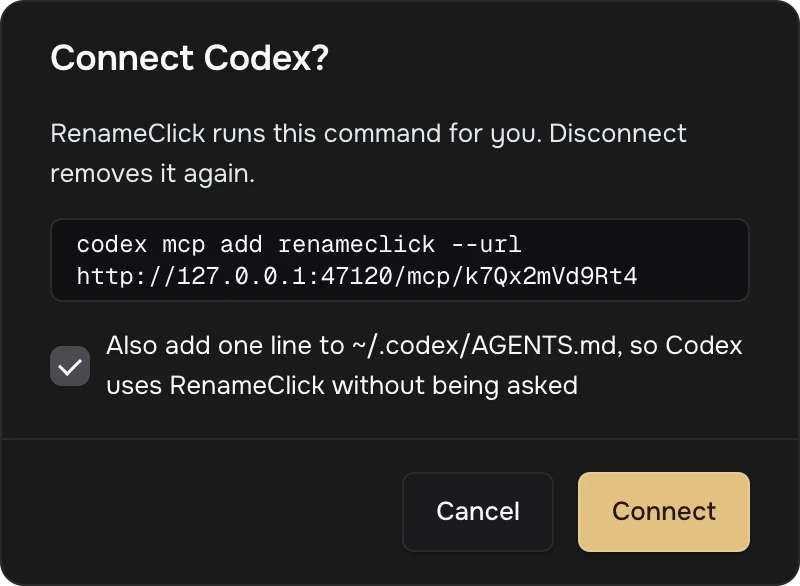
- In RenameClick, press Connect next to Codex. The dialog shows the command RenameClick runs.
- Keep Also add one line to ~/.codex/AGENTS.md checked, and press Connect. With this line, Codex uses RenameClick for file requests even when they do not name it.
- Start a new session in Codex, in the terminal or in the ChatGPT app, and send what you need. For example:
Codex creates an Auto Flow rule and starts it. Results wait on the Auto Flow screen until you apply them, and the rule shows "Created by Codex" next to its name.
In the ChatGPT app, only Codex connects, not regular chats. RenameClick's server can be reached only from your computer, so chats on a website, such as chatgpt.com, cannot connect to it either.
Ready Prompts
The Prompts tab has requests to start with. Prompts that mention a folder already use yours, and each one says what RenameClick will do. Copy a prompt into your agent, or describe what you need in your own words.
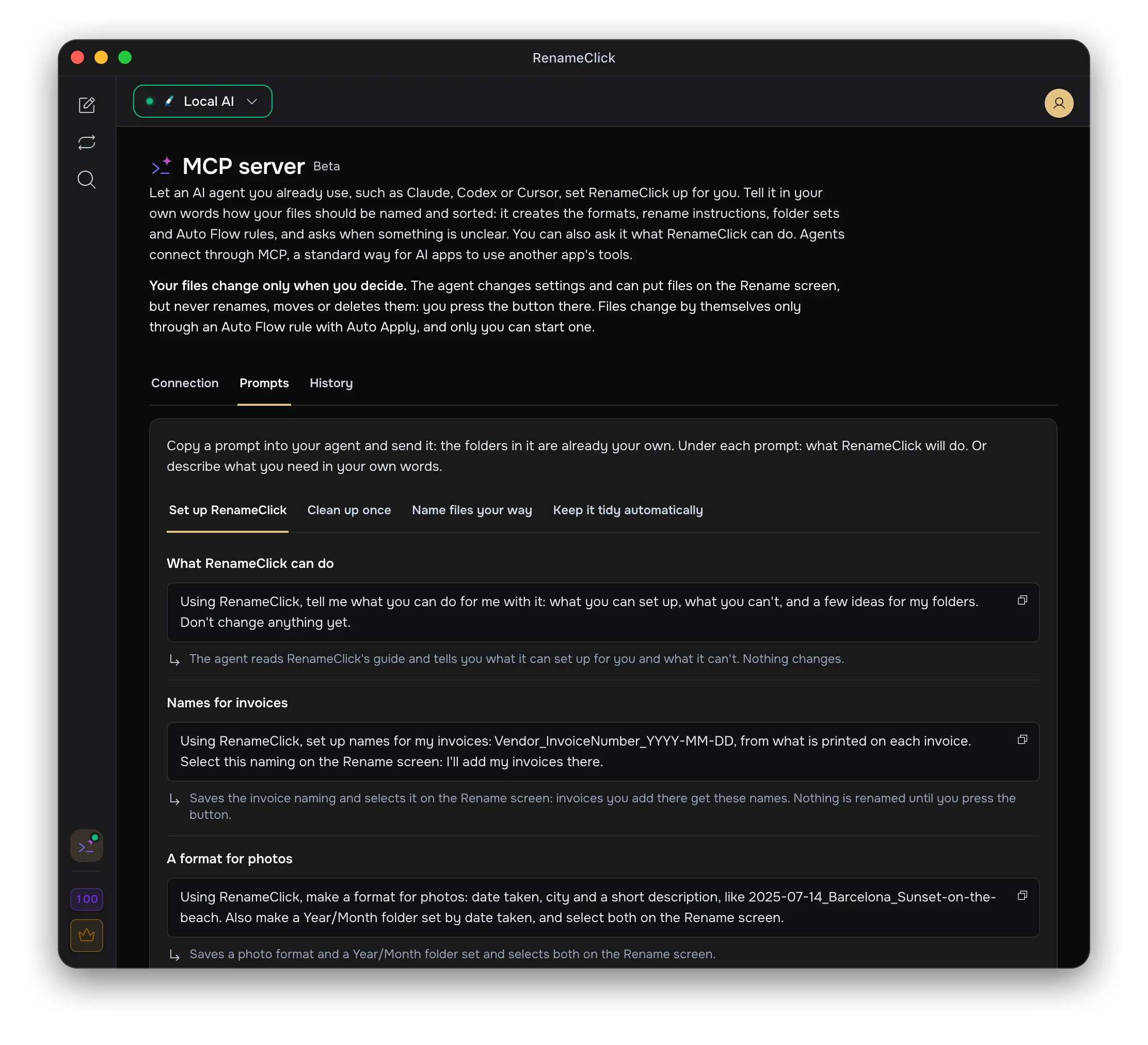
- Set up RenameClick: ask what RenameClick can do, set up names for invoices, make a format and Year/Month folders for photos, create your own folder set.
- Clean up once: organize Downloads with clear names and the Everyday folders, or suggest folders for Documents and only sort the files.
- Name files your way: set up names like an example you give.
- Keep it tidy automatically: name and move your screenshots, or name every PDF in Downloads as an invoice.
If an agent uses its own commands instead of RenameClick, start the request with "Using RenameClick", as the ready prompts do.
See What the Agent Did
An agent works on the same screens you do:
- Rename: files the agent sends join the list. The list is one for you and the agent: the rename button renames every selected file on it, whoever added it.
- Auto Flow: a rule an agent created or changed shows the agent's name and time until you change the rule yourself.
- AI Search: the agent's search runs on the Search screen, and the results header says which agent searched.
- Formats, instructions and folder sets: what the agent saves shows in their menus and editors. A choice the agent changed gets a small dot until you open it.
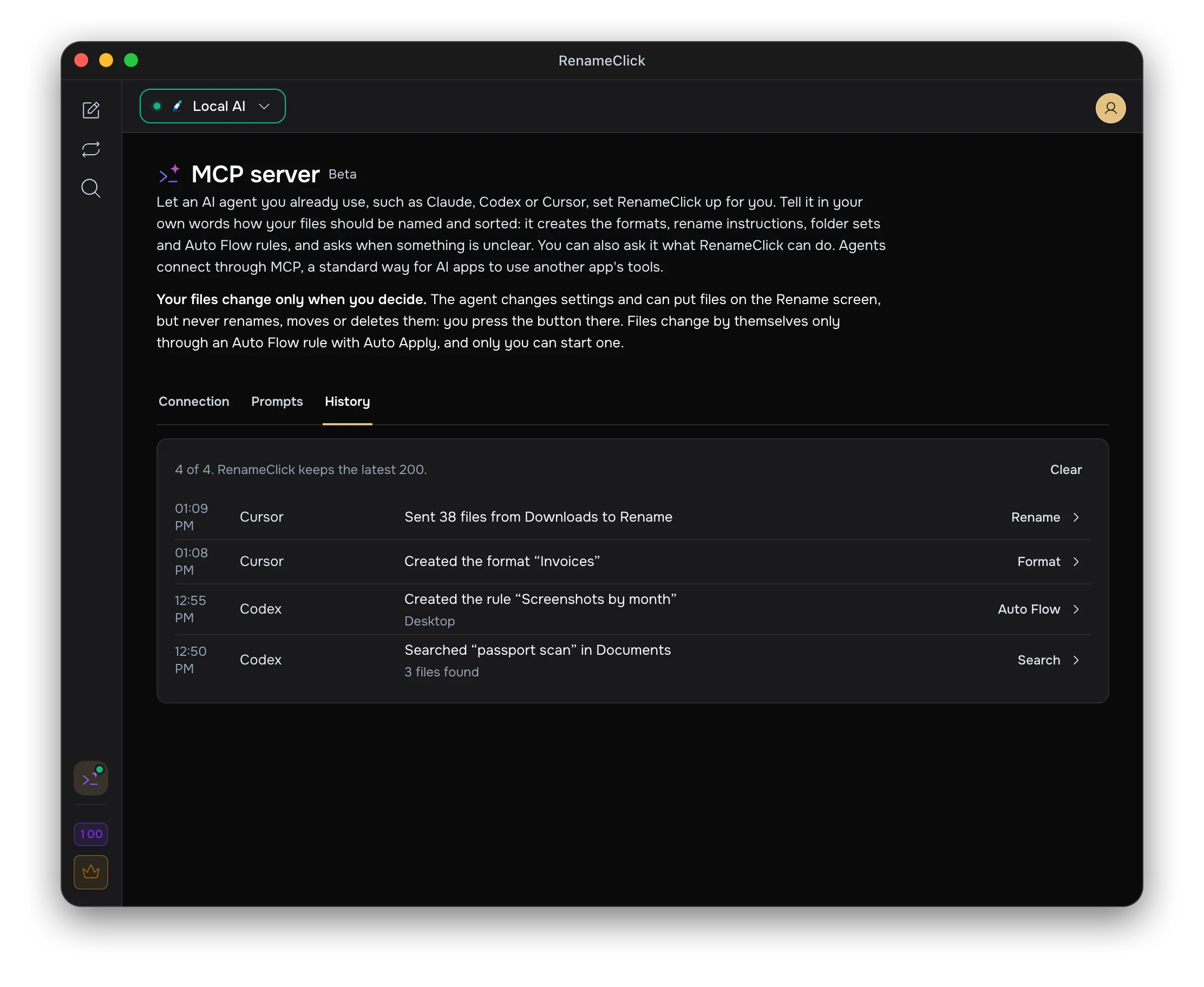
The History tab lists what agents changed or started, newest first, and requests that failed. Each entry links to the place where it happened. Reading settings is not listed.
Credits
Each file whose name or folder changes uses one credit on the Free plan when you rename it, as when you work without an agent. Pro has no limit. Naming files on the Rename screen and searching use no credits. See Credits and plans.
Mac App Store Version
- It cannot run other apps' commands. For those agents the row offers Copy command to run in a terminal. Cursor, LM Studio and the Claude app connect as above.
- It can use only folders you picked once. When an agent names a folder RenameClick cannot reach yet, RenameClick asks you for access. Choose the folder or a parent such as your home folder, and the agent continues when it asks again.
Privacy
The agent's address works only on this computer (127.0.0.1), and only with its private key. Use Change address in the MCP server panel if someone else got the address.
Files are read and named by the AI provider you chose in RenameClick, the same as when you use the app yourself. An agent sees the names RenameClick proposes, and names come from what files contain. An agent that writes its own rename instructions can make a name carry text from a file, so check instructions an agent saved in the Rename instructions menu.
RenameClick does not read from or move files into the disk root, your home folder itself, or system and app folders.
Troubleshooting
| Problem | What to do |
|---|---|
| The agent cannot connect | Make sure RenameClick is running and the MCP server panel says Running. A row that says Added needs a new session in the agent. Has an old address needs Update |
| Could not connect | The row shows what the agent's command answered, for example that you are not signed in to it. Fix that in the agent, then press Try again |
| "Another app uses the port" | Quit the other app, then press Try again in the MCP server panel |
| The agent says the AI is not ready | Open RenameClick and finish setting up the AI provider |
| The agent cannot search | Install Instant Search on the Search screen, stop watching rules and wait for renaming to finish |
| The agent sent files but nothing changed on disk | That is expected: check the names on the Rename screen and press its rename button |
| The agent uses its own commands instead of RenameClick | Say "using RenameClick" in the request, or add the recommended line from the Connection tab to the agent's instructions file |