An AI PDF renamer reads what is inside a PDF and suggests a useful filename before you apply anything on disk. That matters when your folders are full of scan_001.pdf, scan_002.pdf, receipts, contracts, and medical scans with useless names.
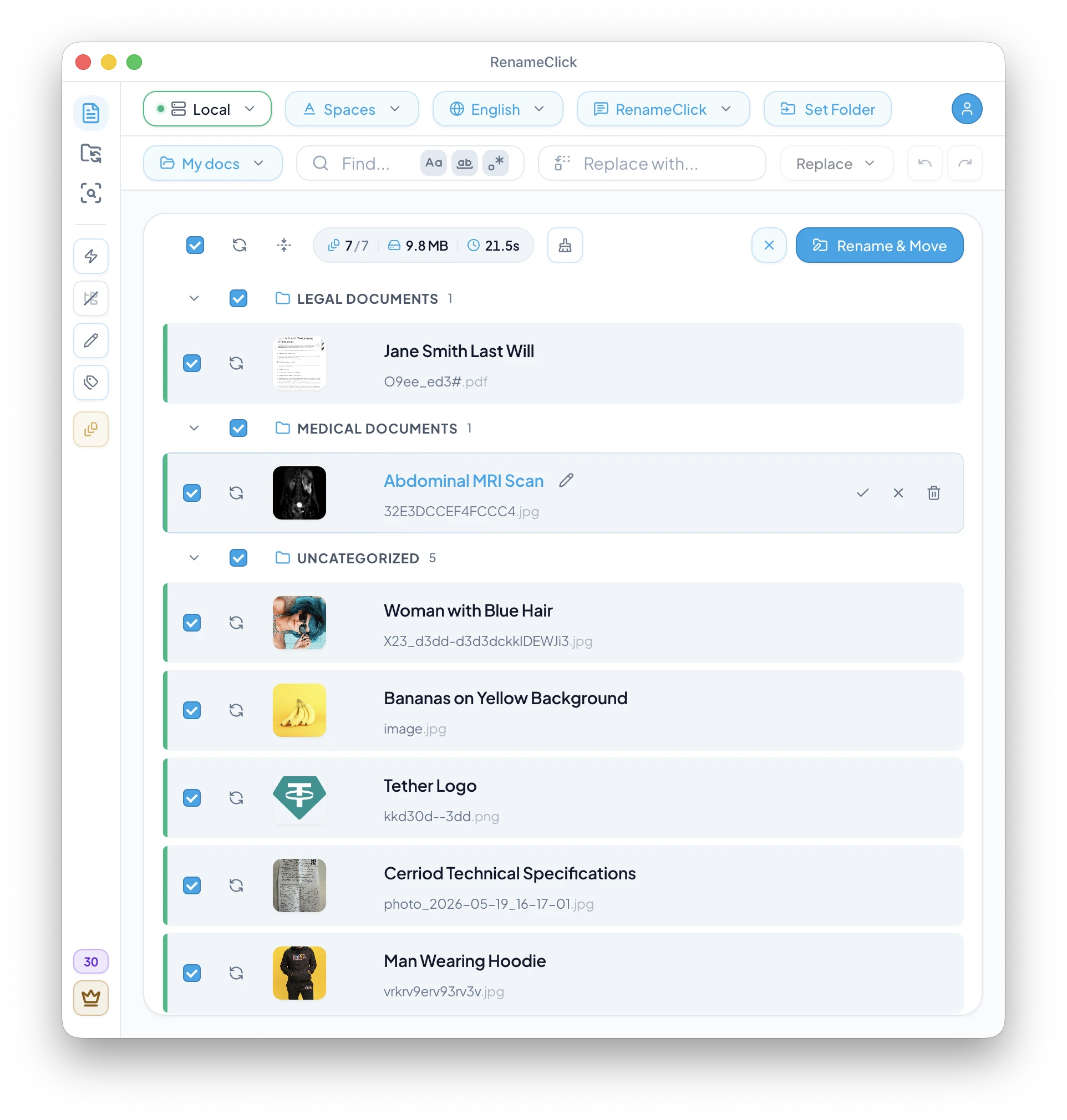
RenameClick handles that with a review-first local AI workflow. You can batch-process scans, receipts, contracts, and medical docs, see suggested filenames before anything changes on disk, and then apply only the names you trust.
This article focuses on the exact scanned-PDF problem: how text PDFs differ from scans, when vision fallback matters, how to design prompts for invoices or medical docs, and what to tweak when scan-heavy renaming gets inconsistent.
| Original PDF | Suggested filename | Content signal |
|---|---|---|
scan_001.pdf | 2026-04-03_ACME_Invoice_7643.pdf | Vendor, date, document type, invoice number. |
receipt.pdf | 2026-04-03_Restaurant_Receipt.pdf | Merchant and receipt type are visible in the scan. |
Document (4).pdf | Rental_Agreement_Terms.pdf | Contract subject is recoverable from page text. |
On this page
Key takeaways
- Text PDFs and scanned PDFs use different extraction paths.
- Review-first renaming is safer than full automation for scan-heavy files.
- Custom instructions work well for invoices, receipts, contracts, and medical scans.
- Format patterns help keep renamed scans consistent across a whole archive.
- Troubleshooting usually means improving scan quality, prompt specificity, or local model setup.
Text PDFs vs scanned PDFs
A normal text PDF contains extractable text. A scanned PDF is often just a page image wrapped inside a PDF container. That distinction matters because the extraction path is different.
- Text PDF: RenameClick can extract text directly.
- Scanned PDF: RenameClick falls back to image-style analysis of the page.
The full behavior is described in Supported File Types. In practice, the scan path is more sensitive to shadows, blur, low contrast, and bad cropping.
Review-first workflow for scanned PDFs
- Start in the Rename workspace with a small batch of scans.
- Let RenameClick analyze the files and suggest descriptive names.
- Review outliers before applying anything on disk.
- Apply approved names, then expand to the next batch.
This is safer than trying to rename 500 scans at once. Scan-heavy workflows always have edge cases, so the goal is fast review, not blind automation.
For the workspace flow itself, see the Rename Workspace documentation.
Custom prompts for receipts, contracts, and medical scans
Scanned PDFs become much more reliable when you stop asking for a generic filename and instead ask for a strict document pattern: document type, date, vendor or patient, and one or two key identifiers.
The Custom Instructions docs already include strong examples for bills and medical documents. The general rule is to make the prompt strict: exact fields, exact order, and explicit fallback text such as UNKNOWN.
You are renaming scanned PDFs.

Read the visible document content and extract:
1. Document type: Invoice, Receipt, Contract, Medical Report, or Form
2. Document date in YYYY-MM-DD format
3. Vendor, counterparty, clinic, or issuer
4. Short identifier such as invoice number, account number, or report type

Rules:
- Use UNKNOWN only when a field is not visible.
- Keep the output under 8 words.
- Do not summarize the document.

Output format:
YYYY-MM-DD_Issuer_DocumentType_Identifier
When a custom prompt is active, it defines the output format directly. That means the standard format selector and output-language selector stop being the main source of truth for the filename.
Format patterns, dates, and consistent outputs
After extraction is stable, use Format Patterns to keep names consistent across the whole archive.
For scanned PDFs, file dates are usually more useful than EXIF, because scans typically do not carry camera metadata the way phone photos do. A simple pattern like $date{YYYY-MM-DD}_$1 is often enough to make a scan archive sortable.
If you need invoice-style names, combine strict prompt output with a lightweight pattern instead of trying to cram every field into the prompt and the pattern at the same time.
Scan quality checklist, trimming, and troubleshooting
Most scanned-PDF failures come from one of three things:
- Low-quality scans: blur, skew, dark shadows, poor contrast.
- Ambiguous prompts that do not define the output clearly enough.
- Long documents where only part of the extracted content matters for naming.
Scan quality checklist
- Use scans with straight pages and readable text.
- Avoid dark shadows, glare, and heavy compression.
- Crop out unrelated background when the document is photographed.
- Test 10-20 representative PDFs before running a large archive.
- Use custom instructions when the same document type repeats.
RenameClick trims extracted text for long documents, so use prompts that focus on the fields you actually need instead of asking for a full summary. For machine-specific issues or slower local inference, use the troubleshooting guide.
FAQ
Can AI rename scanned PDFs?
What is the difference between a text PDF and a scanned PDF?
Can I rename receipts, contracts, and medical scans differently?
Should I automate scanned-PDF renaming immediately?
Does RenameClick rename scanned PDFs offline?
Want to try this workflow?
With the Local provider after the one-time model download, RenameClick can run offline and helps you rename and organize files by content with a review-first flow.