
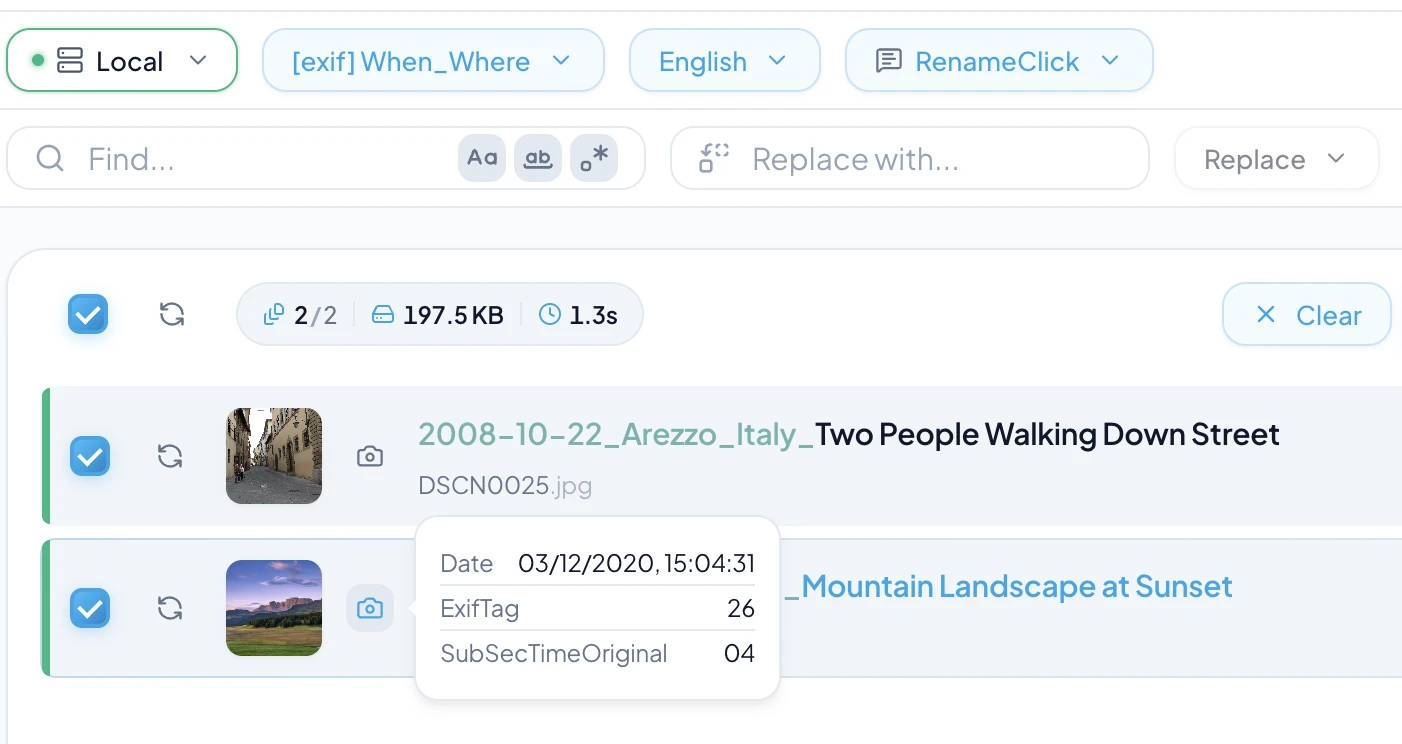
Most people have thousands of photos scattered across their devices — a mix of camera dumps, phone backups, screenshots, and downloads, all named IMG_2847.jpg or DSC_0031.CR2. Finding a specific image means scrolling endlessly or relying on a search tool that may not index file contents.
A solid photo organization system combines folder structures, meaningful file names, and metadata (EXIF data) to make your library browsable, searchable, and future-proof. This guide walks you through the process — and shows how RenameClick can automate the heavy lifting.

Key takeaways
- Use a date-based folder structure (Year → Month) as your foundation.
- Rename photos with descriptive names instead of keeping camera defaults.
- EXIF metadata (date, camera, GPS) can be embedded in file names automatically.
- Batch processing saves hours compared to manual renaming.
The photo chaos problem
A typical phone generates 1,000+ photos per year. Add a DSLR, screenshots, and downloaded images, and you quickly hit 5,000–10,000 files with no meaningful names. The problems stack up:
- You can't find that one vacation photo without scrolling through hundreds.
- Duplicate photos waste storage because you can't tell them apart by name.
- Sharing a file called
IMG_4823.jpggives the recipient zero context. - Backups become unreliable — you don't know what you're keeping or missing.
Choosing a folder structure for photos
The most reliable structure is date-based because it scales indefinitely and doesn't require subjective decisions:
Photos/ ├── 2024/ │ ├── 01-January/ │ ├── 02-February/ │ └── ... ├── 2025/ │ ├── 01-January/ │ └── 02-February/
For event-heavy workflows, add a subfolder level: 2025/03-March/Beach-Trip/. But keep it simple — the more levels you add, the harder it is to maintain consistently.
An alternative is content-based sorting: Photos/Landscapes/, Photos/Family/, Photos/Screenshots/. This works well when combined with AI categorization — RenameClick can automatically sort images into categories like these.
Why descriptive photo names matter
A file named 2025-01-15_golden-gate-bridge-foggy-morning.jpg is instantly searchable and meaningful. Compare that to IMG_3847.jpg — you need to open it just to know what it is.
Descriptive names help with:
- OS search — Spotlight, Windows Search, and Everything index file names instantly.
- SEO — if you publish photos online, search engines use file names as a ranking signal.
- Sharing — recipients understand the content without opening the file.
- De-duplication — descriptive names make duplicates obvious.
Using EXIF metadata for photo naming
Every photo taken by a camera or phone embeds EXIF metadata: capture date, camera model, ISO, aperture, GPS coordinates, and more. This data is a goldmine for file naming.
In RenameClick, you can use EXIF placeholders in format patterns:
$exif{date,YYYYMMDD}_$1→20250115_Golden Gate Bridge Foggy Morning.jpg$exif{camera}_$1→Canon_EOS_R5_Golden Gate Bridge Foggy Morning.jpg$exif{city}_$exif{country}_$1→San_Francisco_USA_Golden Gate Bridge.jpg$exif{date}_$exif{time}_$1→2025-01-15_08-30-12_Golden Gate Bridge.jpg
This way, your photo names carry real metadata — date, location, equipment — without manually looking up each photo's properties.
Batch renaming photos efficiently
Renaming photos one by one is impractical when you return from a trip with 500 images. Batch renaming tools let you process all files at once, but most traditional tools only offer pattern-based renaming (sequential numbers, find/replace) — they can't describe what's in the photo.
RenameClick combines batch processing with content analysis. Drop a folder of photos, and the AI generates a unique descriptive name for each one based on what it sees — a sunset, a building, a group of people, food, a document scan. You review all suggestions before applying.
AI-powered photo renaming with RenameClick
RenameClick uses a local small but powerful vision-language model to analyze each image and generate a descriptive name. The process:
- Drop photos into RenameClick (or select a folder).
- The AI analyzes each image content locally — nothing leaves your device.
- Review the suggested names in the results panel.
- Optionally edit names with Find & Replace (supports regex).
- Apply renames to disk.
For photos with EXIF data, combine AI descriptions with metadata using format patterns. Example: $exif{date,YYYYMMDD}_$exif{city}_$lower{$1} produces names like 20250115_san-francisco_golden-gate-bridge-foggy-morning.jpg.
Combining renaming with folder categorization
The most powerful workflow in RenameClick is rename + categorize. Enable both features, select a category preset (e.g., Media Files: Photos, Screenshots, Artwork, Memes, Diagrams, Icons), and the AI will:
- Generate a descriptive file name.
- Assign a category based on image content.
- Move each file into the corresponding subfolder when you apply.
This turns a flat folder of 500 mixed images into a neatly organized structure in minutes, not hours.
FAQ
What is the best folder structure for photos?
Can I rename photos using EXIF data automatically?
Does AI photo renaming work offline?
How do I organize screenshots separately from photos?
What image formats are supported?
Want to try this workflow?
RenameClick runs offline by default and helps you rename and organize files by content — with a review-first flow.